Excel formulas in R: a guide for Excel users
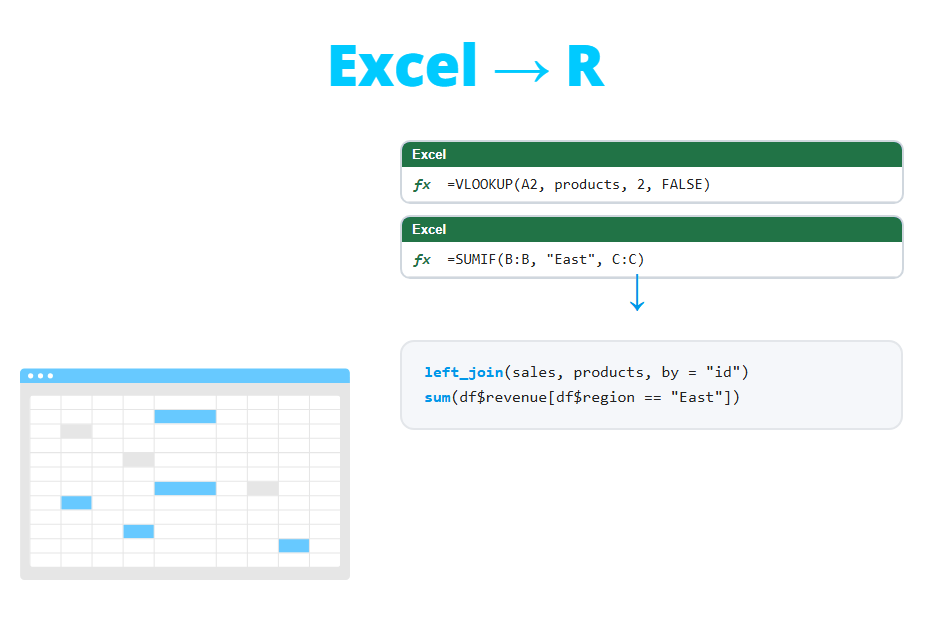
If you know Excel, you already know what you want to do with your data: look up values, add up by condition, build a pivot table or split a text column. This guide shows how to do it in R, with a big table of Excel functions and their equivalents in base R and dplyr, short examples of the most used formulas on a small sales table, how to read and write Excel files and some tips to make the transition easier.
From cells to vectors: what changes when you move to R
Most of the Excel formulas have a direct equivalent in R. What changes is the way of thinking about the data:
- Cells → vectors and data frames. In Excel you work with cells (
B2) and ranges (B2:B100). In R you work with whole columns, which are vectors, and tables, which are data frames. You refer to a column by its name (sales$price), not by its position. - Formulas dragged down → vectorized operations. In Excel you write
=C2*D2and drag it down the column. In R,sales$units * sales$pricemultiplies the two columns element by element in a single operation, no matter if they have 10 rows or 10 million. - Sheets → data frames. Each sheet with a table becomes a data frame. Instead of referring to
Products!A:D, you work with an object calledproducts, and you can have as many as you want in memory at the same time. - Clicks → code. Sorting, filtering or removing duplicates are not menu options but functions. That’s more work the first time, but the code can be run again on next month’s data with no extra effort.
There is a last important difference: R doesn’t recalculate automatically. If you change a value of the price column, the total column won’t update until you run the code that computes it again. That’s why it is better to keep all the steps in a script and run it from start to end.
Excel functions and their R equivalents
The following table shows the most used Excel functions and features, their equivalent in base R and in the tidyverse (dplyr, tidyr and stringr) and the tutorial where you can learn more about each one.
| Excel | R base | dplyr / tidyverse | Tutorial |
|---|---|---|---|
VLOOKUP, XLOOKUP, INDEX + MATCH |
t$col[match(x, t$key)], merge(all.x = TRUE) |
left_join() |
VLOOKUP in R |
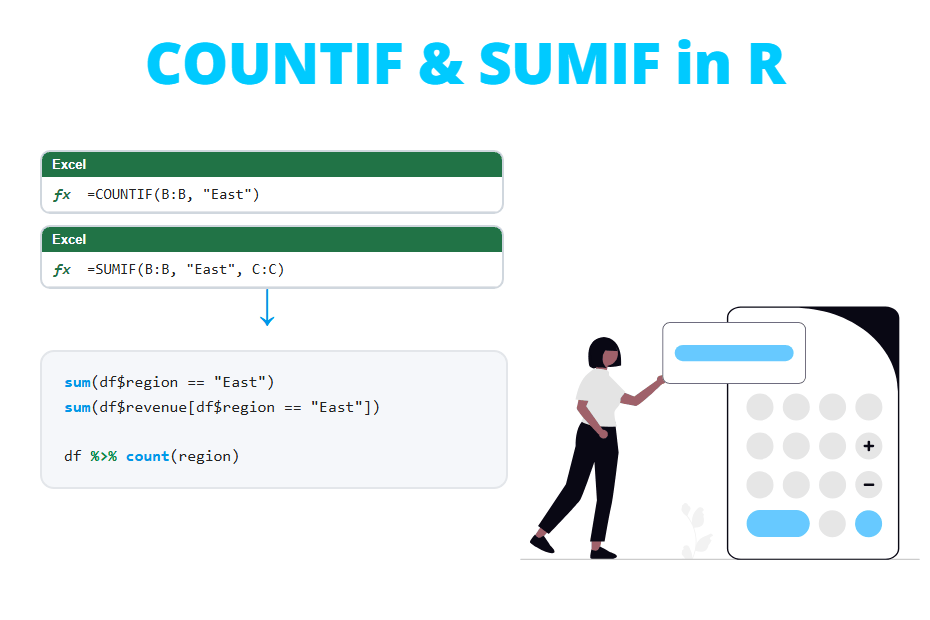
SUMIF, SUMIFS |
sum(x[cond]), tapply(), aggregate() |
group_by() + summarise(sum()) |
COUNTIF and SUMIF in R |
COUNTIF, COUNTIFS |
sum(cond), table() |
count() |
COUNTIF and SUMIF in R |
AVERAGEIF, AVERAGEIFS |
mean(x[cond]), tapply() |
group_by() + summarise(mean()) |
COUNTIF and SUMIF in R |
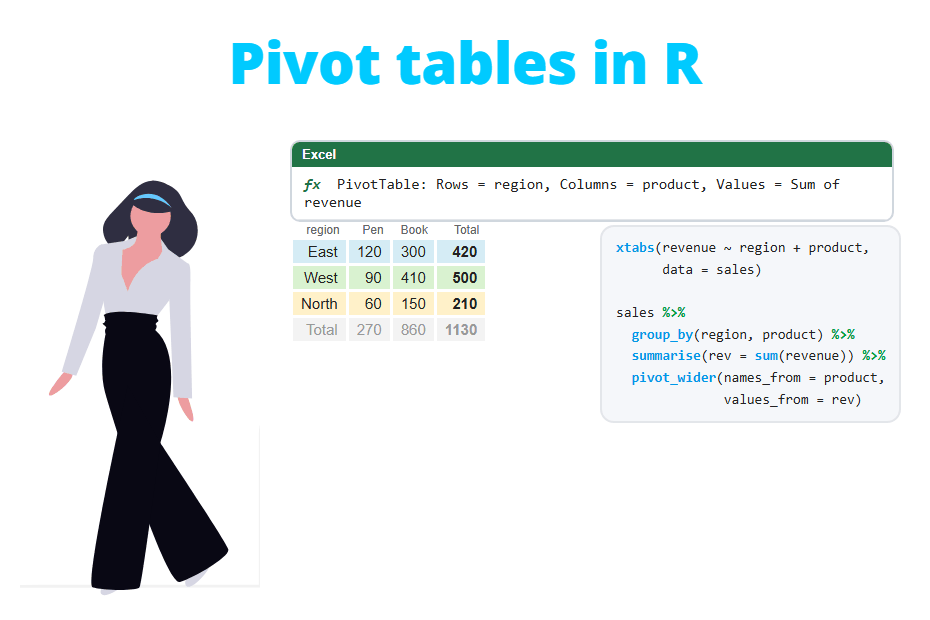
| Pivot table | tapply(), xtabs(), aggregate() |
summarise() + pivot_wider() |
Pivot tables in R |
IF |
ifelse() |
if_else() |
ifelse in R |
IFS, nested IF |
nested ifelse(), cut() |
case_when() |
case_when |
IFERROR, IFNA |
ifelse(is.na(x), y, x), tryCatch() |
coalesce() |
tryCatch |
ISBLANK |
is.na() |
is.na(), drop_na() |
NA values |
CONCATENATE, CONCAT, & |
paste(), paste0() |
str_c() |
paste |
TEXTJOIN |
paste(x, collapse = ", ") |
str_flatten() |
paste |
LEFT, RIGHT, MID |
substr(), substring() |
str_sub() |
substring |
LEN |
nchar() |
str_length() |
nchar |
TRIM |
trimws() |
str_squish() |
trimws |
UPPER, LOWER, PROPER |
toupper(), tolower() |
str_to_upper(), str_to_title() |
toupper and tolower |
SUBSTITUTE |
gsub(), sub() |
str_replace_all() |
gsub and sub |
FIND, SEARCH |
grepl(), regexpr() |
str_detect(), str_locate() |
grepl and grep |
| Text to columns | strsplit() |
separate_wider_delim() |
Text to columns in R |
| Remove duplicates | unique(), duplicated() |
distinct() |
Remove duplicates |
| Sort | df[order(df$x), ] |
arrange() |
sort and order, arrange |
| Filter | df[cond, ], subset() |
filter() |
filter, subset |
TRANSPOSE |
t() |
pivot_longer(), pivot_wider() |
Matrix operations, pivot_longer and pivot_wider |
ROUND, ROUNDUP, ROUNDDOWN |
round(), ceiling(), floor(), trunc() |
Same functions | Rounding numbers |
SUM, AVERAGE, MEDIAN |
sum(), mean(), median() |
summarise() |
mean, median |
MIN, MAX |
min(), max() |
summarise() |
max and min |
STDEV, STDEV.S, VAR |
sd(), var() |
summarise() |
Standard deviation |
COUNT, COUNTA |
sum(!is.na(x)), length() |
n() |
length |
RAND, RANDBETWEEN |
runif(), sample() |
slice_sample() |
sample, runif |
TODAY, NOW |
Sys.Date(), Sys.time() |
lubridate::today() |
Sys.Date and Sys.time |
DATEDIF, date differences |
difftime(), d2 - d1 |
lubridate |
Dates in R |
Open an .xlsx file |
readxl::read_excel() |
read_excel() |
Read Excel files |
Save as .xlsx or CSV |
writexl::write_xlsx(), write.csv() |
write_xlsx() |
Export data |
The tidyverse column uses functions from dplyr (left_join, summarise, case_when…), tidyr (pivot_wider, separate_wider_delim) and stringr (the str_* functions). You don’t need them to work in R, but they make the code easier to read, especially combined with the pipe operator %>%.
Excel formulas in R: examples
In this section you will see the R version of the formulas that Excel users write the most. All the examples use the following sales table, which would be a sheet with eight rows and six columns in Excel:
sales <- data.frame(
  date = as.Date(c("2026-01-12", "2026-01-25", "2026-02-03", "2026-02-18",
                   "2026-03-04", "2026-03-15", "2026-03-27", "2026-04-08")),
  rep = c("Ann Lee", "Bob Smith", "Ann Lee", "Carl Diaz",
          "Bob Smith", "Carl Diaz", "Ann Lee", "Bob Smith"),
  region = c("East", "West", "East", "West", "West", "East", "East", "West"),
  product = c("Laptop", "Phone", "Phone", "Laptop", "Tablet", "Phone", "Tablet", "Laptop"),
  units = c(2, 5, 3, 1, 4, 6, 2, 3),
  price = c(950, 420, 420, 950, 310, 420, 310, 950))

sales
date rep region product units price
1 2026-01-12 Ann Lee East Laptop 2 950
2 2026-01-25 Bob Smith West Phone 5 420
3 2026-02-03 Ann Lee East Phone 3 420
4 2026-02-18 Carl Diaz West Laptop 1 950
5 2026-03-04 Bob Smith West Tablet 4 310
6 2026-03-15 Carl Diaz East Phone 6 420
7 2026-03-27 Ann Lee East Tablet 2 310
8 2026-04-08 Bob Smith West Laptop 3 950A formula dragged down: new columns
In Excel you would write =E2*F2 in a new column and drag it down. In R you create the column in one line and the operation is applied to all the rows:
# Excel: =E2*F2 (dragged down)
sales$total <- sales$units * sales$price

sales
date rep region product units price total
1 2026-01-12 Ann Lee East Laptop 2 950 1900
2 2026-01-25 Bob Smith West Phone 5 420 2100
3 2026-02-03 Ann Lee East Phone 3 420 1260
4 2026-02-18 Carl Diaz West Laptop 1 950 950
5 2026-03-04 Bob Smith West Tablet 4 310 1240
6 2026-03-15 Carl Diaz East Phone 6 420 2520
7 2026-03-27 Ann Lee East Tablet 2 310 620
8 2026-04-08 Bob Smith West Laptop 3 950 2850With dplyr you would write sales %>% mutate(total = units * price). You can learn more in the mutate tutorial.
IF and nested IF
The IF function becomes ifelse, which evaluates the condition for each row and returns one value or the other:
# Excel: =IF(G2>=2000, "Large", "Small")
sales$size <- ifelse(sales$total >= 2000, "Large", "Small")

sales[, c("rep", "total", "size")]
rep total size
1 Ann Lee 1900 Small
2 Bob Smith 2100 Large
3 Ann Lee 1260 Small
4 Carl Diaz 950 Small
5 Bob Smith 1240 Small
6 Carl Diaz 2520 Large
7 Ann Lee 620 Small
8 Bob Smith 2850 LargeFor several conditions (a nested IF or IFS), nesting ifelse quickly becomes unreadable. case_when from dplyr evaluates the conditions in order and assigns the value of the first one that is true, exactly like IFS:
library(dplyr)

# Excel: =IFS(G2>=2500, "Large", G2>=1000, "Medium", TRUE, "Small")
sales %>%
  mutate(size = case_when(total >= 2500 ~ "Large",
                          total >= 1000 ~ "Medium",
                          .default = "Small")) %>%
  select(rep, total, size)
rep total size
1 Ann Lee 1900 Medium
2 Bob Smith 2100 Medium
3 Ann Lee 1260 Medium
4 Carl Diaz 950 Small
5 Bob Smith 1240 Medium
6 Carl Diaz 2520 Large
7 Ann Lee 620 Small
8 Bob Smith 2850 LargeSUMIF, COUNTIF and AVERAGEIF
The trick to translate the conditional functions is that a condition in R returns a vector of TRUE and FALSE. You can use it to select the values that meet it, or add it up directly, because TRUE counts as 1:
# SUMIF: =SUMIF(C:C, "East", G:G)
sum(sales$total[sales$region == "East"])

# COUNTIF: =COUNTIF(C:C, "East")
sum(sales$region == "East")

# AVERAGEIF: =AVERAGEIF(C:C, "East", G:G)
mean(sales$total[sales$region == "East"])

# SUMIFS (two conditions): =SUMIFS(G:G, C:C, "East", D:D, "Phone")
sum(sales$total[sales$region == "East" & sales$product == "Phone"])
[1] 6300
[1] 4
[1] 1575
[1] 3780In Excel you usually write a SUMIF for each region. In R it is more natural to compute the result for all the groups at once with group_by and summarise:
sales %>%
  group_by(region) %>%
  summarise(orders = n(),
            sales = sum(total),
            average = mean(total))
# A tibble: 2 × 4
region orders sales average
<chr> <int> <dbl> <dbl>
1 East 4 6300 1575
2 West 4 7140 1785You will find more conditions (text that contains a word, dates, “greater than” criteria…) in COUNTIF and SUMIF in R.
VLOOKUP
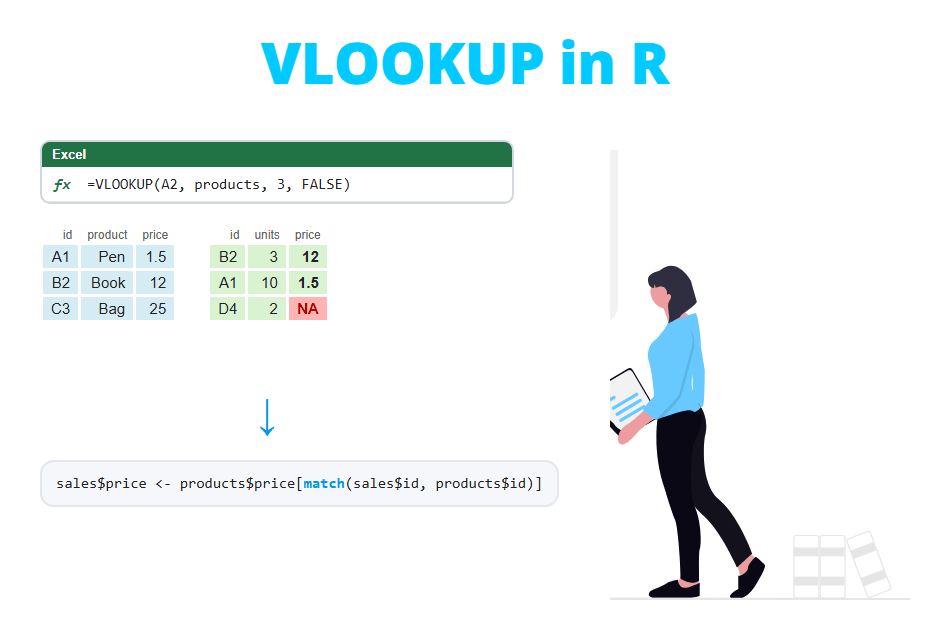
Suppose you have a second table with the manager of each region and you want to add it to the sales table. The Excel VLOOKUP is done in R with match, which returns the row of the lookup table where each value is found:
managers <- data.frame(region = c("East", "West"),
                       manager = c("Diana Ross", "Eric Wong"))

# Excel: =VLOOKUP(C2, Managers!A:B, 2, FALSE)
sales$manager <- managers$manager[match(sales$region, managers$region)]

sales[, c("rep", "region", "manager")]
rep region manager
1 Ann Lee East Diana Ross
2 Bob Smith West Eric Wong
3 Ann Lee East Diana Ross
4 Carl Diaz West Eric Wong
5 Bob Smith West Eric Wong
6 Carl Diaz East Diana Ross
7 Ann Lee East Diana Ross
8 Bob Smith West Eric WongThe alternative with dplyr is left_join(sales, managers, by = "region"). Values not found, duplicated keys, approximate match and INDEX MATCH are explained in detail in how to do a VLOOKUP in R.
Pivot table
A pivot table with the regions in the rows, the products in the columns and the sum of the sales in the values is a single line of base R with tapply:
tapply(sales$total, list(sales$region, sales$product), sum) Laptop Phone Tablet
East 1900 3780 620
West 3800 2100 1240With dplyr you first summarise the data by region and product and then spread the products into columns with pivot_wider from tidyr. The argument values_fill = 0 writes a 0 in the combinations without sales, which would be empty cells in Excel:
library(tidyr)

sales %>%
  group_by(region, product) %>%
  summarise(total = sum(total), .groups = "drop") %>%
  pivot_wider(names_from = product, values_from = total, values_fill = 0)
# A tibble: 2 × 4
region Laptop Phone Tablet
<chr> <dbl> <dbl> <dbl>
1 East 1900 3780 620
2 West 3800 2100 1240The result is a regular data frame that you can keep transforming or export to Excel. Totals, percentages, several values and filters are covered in pivot tables in R.
Text functions: LEFT, UPPER, CONCATENATE and text to columns
The text functions of Excel have their equivalent in base R. All of them work on the whole column at once:
# LEFT: =LEFT(B2, 3)
substr(sales$rep, 1, 3)

# UPPER: =UPPER(C2)
toupper(sales$region)

# CONCATENATE: =B2 & " - " & C2
paste(sales$rep, sales$region, sep = " - ")
[1] "Ann" "Bob" "Ann" "Car" "Bob" "Car" "Ann" "Bob"
[1] "EAST" "WEST" "EAST" "WEST" "WEST" "EAST" "EAST" "WEST"
[1] "Ann Lee - East" "Bob Smith - West" "Ann Lee - East" "Carl Diaz - West"
[5] "Bob Smith - West" "Carl Diaz - East" "Ann Lee - East" "Bob Smith - West"The Text to Columns wizard of Excel is done with separate_wider_delim from tidyr, which splits a column into several ones using a delimiter:
sales %>%
  separate_wider_delim(rep, delim = " ", names = c("first", "last")) %>%
  select(first, last) %>%
  head(3)
# A tibble: 3 × 2
first last
<chr> <chr>
1 Ann Lee
2 Bob Smith
3 Ann LeeIf some rows have more or fewer pieces than expected (a middle name, for instance), see Text to Columns in R.
Dates: TODAY and date differences
In Excel a date is a number with a date format. In R it is an object of class Date, and the difference between two dates returns the number of days, as when you subtract two dates in Excel. Sys.Date() is the equivalent of TODAY(), but here we use a fixed date so that you get the same result:
# Days since each sale: =DATE(2026,10,31) - A2
sales$days <- as.numeric(as.Date("2026-10-31") - sales$date)

# Year and month: =TEXT(A2, "yyyy-mm")
sales$month <- format(sales$date, "%Y-%m")

sales[1:4, c("date", "days", "month")]
date days month
1 2026-01-12 292 2026-01
2 2026-01-25 279 2026-01
3 2026-02-03 270 2026-02
4 2026-02-18 255 2026-02Learn how to convert text to dates, extract the weekday or add months in the tutorial about dates in R.
Read and write Excel files
You don’t need to convert your workbooks to CSV to use them in R. The readxl package reads .xlsx and .xls files and the writexl package writes them. Neither needs Excel or Java installed. In this example we save the sales table and read it again:
# install.packages(c("readxl", "writexl"))
library(readxl)
library(writexl)

# Save the data frame as an Excel file
write_xlsx(sales[, 1:7], "sales.xlsx")

# Read the Excel file
df <- read_excel("sales.xlsx")
df
# A tibble: 8 × 7
date rep region product units price total
<dttm> <chr> <chr> <chr> <dbl> <dbl> <dbl>
1 2026-01-12 00:00:00 Ann Lee East Laptop 2 950 1900
2 2026-01-25 00:00:00 Bob Smith West Phone 5 420 2100
3 2026-02-03 00:00:00 Ann Lee East Phone 3 420 1260
4 2026-02-18 00:00:00 Carl Diaz West Laptop 1 950 950
5 2026-03-04 00:00:00 Bob Smith West Tablet 4 310 1240
6 2026-03-15 00:00:00 Carl Diaz East Phone 6 420 2520
7 2026-03-27 00:00:00 Ann Lee East Tablet 2 310 620
8 2026-04-08 00:00:00 Bob Smith West Laptop 3 950 2850Notice that the dates come back as date-time (<dttm>), because that’s how Excel stores them. Use as.Date(df$date) if you only need the date. Other useful arguments of read_excel are:
sheet: the name or number of the sheet to read, for instancesheet = "2026".excel_sheets("file.xlsx")lists the sheets of a workbook.range: a range in Excel notation, such asrange = "B3:H50", when the table doesn’t start inA1.skip: the number of rows to skip at the beginning (titles, logos, notes…).na: the values to read asNA, for instancena = c("", "-", "n/a").
To write several sheets in the same workbook, pass a named list of data frames to write_xlsx: write_xlsx(list(Sales = sales, Summary = summary_df), "report.xlsx"). You have all the options, including other packages such as openxlsx, in the tutorials about how to read Excel files in R and how to export data from R.
Tips for Excel users
Most of the problems of people who move from Excel to R come from the way the spreadsheets are built, not from R itself. These tips will save you a lot of time:
- One header row. The first row of the table should contain the column names, and only that. Titles above the table, two-row headers or notes at the bottom must be removed or skipped with
skipandrange. - No merged cells. When you read a merged cell, only the first cell has the value and the rest are
NA. Fill the values in every row instead. - Tidy data: each column is a variable, each row an observation and each cell a single value. A sheet with one column per month (
Jan,Feb,Mar…) is easy to read but hard to analyze. Convert it to a long table with pivot_longer. - One data type per column. A column with numbers and some cells with text such as
"N/A"or"pending"is read as text. Thensumfails and the comparisons don’t work as expected. - Don’t use colors as data. R can’t see that a row is highlighted in yellow. If the color means something (“pending payment”), create a column with that information.
- Keep the raw data untouched. Read the original file, do all the transformations in the script and write the result to a new file. If something goes wrong, run the script again.
Why scripts beat manual clicks: a script is a record of every step you did. If next month you receive a new file, you only have to change the file name and run it again. If someone asks how a number was calculated, the answer is in the code. And if you make a mistake, you fix one line instead of repeating all the clicks.
Finally, keep in mind that some functions with the same name don’t give exactly the same result in Excel and R:
round: Excel rounds halves away from zero (ROUND(2.5, 0)is 3), but R follows the IEC 60559 standard and rounds them to the even number:round(c(0.5, 1.5, 2.5, 3.5))returns0 2 2 4.ROUNDUPandROUNDDOWNround away from zero and towards zero.truncis equivalent toROUNDDOWN, butceilingalways rounds up:ceiling(-2.1)is-2, whileROUNDUP(-2.1, 0)is-3.STDEVandsdboth compute the sample standard deviation. If you usedSTDEV.P(population), the result will be different.- Lookups:
VLOOKUPis not case-sensitive, butmatchand the joins are, as explained in the VLOOKUP tutorial.