How to create a pivot table in R (the Excel PivotTable way)
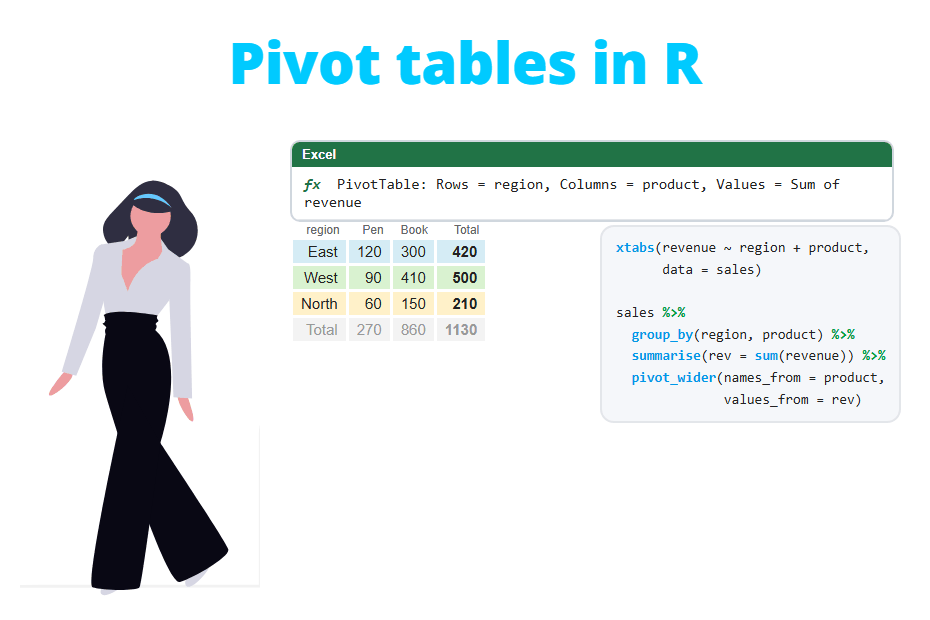
A pivot table summarizes a data set by putting one variable in the rows, another in the columns and a sum, count or average in the cells. R has no “Insert PivotTable” button, but it doesn’t need one: a few lines of code with table, xtabs, aggregate, tapply or dplyr and tidyr give you the same result, and the code can be rerun every time the data changes. In this tutorial you will learn how each area of the Excel PivotTable maps to R, how to add grand totals, subtotals and percentages, how to filter and sort the pivot and how to export it back to Excel.
Quick answer
The most flexible way to create a pivot table in R is to summarise by group and then spread one of the grouping columns into columns. The following code computes the total revenue for each region (rows) and product (columns), filling empty cells with 0:
library(dplyr)
library(tidyr)

sales %>%
  group_by(region, product) %>%
  summarise(revenue = sum(revenue), .groups = "drop") %>%
  pivot_wider(names_from = product, values_from = revenue, values_fill = 0)
# A tibble: 3 × 4
region Laptop Phone Tablet
<chr> <dbl> <dbl> <dbl>
1 East 8000 10000 1200
2 South 8000 0 2100
3 West 4000 12500 1800If you only need counts or sums of one variable, base R is even shorter: xtabs(revenue ~ region + product, data = sales) returns the same table. Both options are explained below, step by step.
Sample data
Along this tutorial we will use a small data frame with the sales of a store. Each row is one sale, as it would be in an Excel sheet before inserting the PivotTable: the region, the product, the month, the number of units sold and the revenue.
sales <- data.frame(
  region  = c("East", "East", "East", "East", "West", "West",
              "West", "West", "South", "South", "South", "East"),
  product = c("Laptop", "Phone", "Laptop", "Phone", "Laptop", "Phone",
              "Tablet", "Phone", "Laptop", "Tablet", "Laptop", "Tablet"),
  month   = c("Jan", "Jan", "Feb", "Feb", "Jan", "Jan",
              "Feb", "Mar", "Jan", "Feb", "Mar", "Mar"),
  units   = c(5, 12, 3, 8, 4, 15, 6, 10, 2, 7, 6, 4),
  revenue = c(5000, 6000, 3000, 4000, 4000, 7500, 1800, 5000, 2000, 2100, 6000, 1200)
)

sales
region product month units revenue
1 East Laptop Jan 5 5000
2 East Phone Jan 12 6000
3 East Laptop Feb 3 3000
4 East Phone Feb 8 4000
5 West Laptop Jan 4 4000
6 West Phone Jan 15 7500
7 West Tablet Feb 6 1800
8 West Phone Mar 10 5000
9 South Laptop Jan 2 2000
10 South Tablet Feb 7 2100
11 South Laptop Mar 6 6000
12 East Tablet Mar 4 1200Note that the South region never sold a phone. That empty combination is what you will see as a blank cell in Excel, and as NA or 0 in R, depending on the function.
If your data is in an Excel file, read it first with read_excel and the rest of the tutorial works the same way.
From the Excel PivotTable areas to R
In Excel you drag fields into four areas: Rows, Columns, Values and Filters. Each of them has a direct equivalent in R:
| Excel PivotTable area | What it does | Base R | dplyr + tidyr |
|---|---|---|---|
| Rows | Groups shown as rows | Left side of ~ or first factor |
group_by(region) |
| Columns | Groups shown as columns | Second factor | pivot_wider(names_from = product) |
| Values (Sum, Count, Average) | Summary shown in the cells | FUN = sum, table, xtabs(y ~ ...) |
summarise(revenue = sum(revenue)) |
| Filters | Restricts the rows used | subset argument or sales[cond, ] |
filter(month == "Jan") |
| Grand Totals | Row and column totals | addmargins |
bind_rows of a totals row |
| Show Values As (% of…) | Percentages | prop.table |
mutate(pct = x / sum(x)) |
Keep this table in mind: every pivot table in R is just a combination of these pieces.
Count rows: table and xtabs
The simplest pivot is the one that counts how many rows fall in each combination, like a PivotTable with “Count of” in the Values area. In R this is a contingency table, and you can create it with the table function:
table(sales$region, sales$product) Laptop Phone Tablet
East 2 2 1
South 2 0 1
West 1 2 1Read the output as “the East region has 2 laptop sales, 2 phone sales and 1 tablet sale”. These are number of rows (orders), not units sold.
The xtabs function does the same with a formula and the data argument, which is cleaner and keeps the variable names as headers:
xtabs(~ region + product, data = sales) product
region Laptop Phone Tablet
East 2 2 1
South 2 0 1
West 1 2 1The variable before the + goes to the rows and the one after it to the columns. See how to work with these objects in the post about contingency tables in R.
Sum and mean: xtabs, aggregate and tapply
Sum with xtabs
If you put a numeric variable on the left side of the formula, xtabs sums it instead of counting rows. This is the “Sum of revenue” PivotTable:
xtabs(revenue ~ region + product, data = sales) product
region Laptop Phone Tablet
East 8000 10000 1200
South 8000 0 2100
West 4000 12500 1800xtabs can only sum. For means, medians or any other function you need aggregate, tapply or dplyr.
aggregate
The aggregate function applies any function by group, but it returns a long table, with one row per combination, instead of a cross table:
aggregate(revenue ~ region + product, data = sales, FUN = sum) region product revenue
1 East Laptop 8000
2 South Laptop 8000
3 West Laptop 4000
4 East Phone 10000
5 West Phone 12500
6 East Tablet 1200
7 South Tablet 2100
8 West Tablet 1800This long format is the equivalent of the Excel PivotTable with both fields in the Rows area (“Tabular form”). Notice that combinations with no data, like South and Phone, are simply not in the output. With only one grouping variable, aggregate is the fastest way to get the average per group:
aggregate(revenue ~ region, data = sales, FUN = mean) region revenue
1 East 3840.000
2 South 3366.667
3 West 4575.000tapply
The tapply function returns a cross table directly when you pass a list of two grouping variables. Here we compute the average units per sale of each region and product:
tapply(sales$units, list(sales$region, sales$product), mean) Laptop Phone Tablet
East 4 10.0 4
South 4 NA 7
West 4 12.5 6The empty combination now appears as NA, because there is no value to average. When you sum with tapply, you can replace these NA with zeros using the default argument:
tapply(sales$revenue, list(sales$region, sales$product), sum, default = 0) Laptop Phone Tablet
East 8000 10000 1200
South 8000 0 2100
West 4000 12500 1800The dplyr way: group_by, summarise and pivot_wider
The tidyverse approach takes two steps and it is the one that scales best when the pivot gets complex:
- group_by the Rows and Columns fields and summarise the Values field. You get a long table.
- Spread the Columns field into columns with pivot_wider.
The first step gives the same long table as aggregate:
library(dplyr)
library(tidyr)

long <- sales %>%
  group_by(region, product) %>%
  summarise(revenue = sum(revenue), .groups = "drop")

long
# A tibble: 8 × 3
region product revenue
<chr> <chr> <dbl>
1 East Laptop 8000
2 East Phone 10000
3 East Tablet 1200
4 South Laptop 8000
5 South Tablet 2100
6 West Laptop 4000
7 West Phone 12500
8 West Tablet 1800And the second step turns the products into columns:
long %>%
  pivot_wider(names_from = product, values_from = revenue)
# A tibble: 3 × 4
region Laptop Phone Tablet
<chr> <dbl> <dbl> <dbl>
1 East 8000 10000 1200
2 South 8000 NA 2100
3 West 4000 12500 1800The result is a data frame (a tibble), not a table object, so you can keep working with it using mutate, filter or arrange, and export it as it is.
To show a mean or a count instead of a sum, change the function inside summarise: mean(units), n(), median(revenue), max(revenue), etc. For instance, the average units per sale by region and month:
sales %>%
  group_by(region, month) %>%
  summarise(avg_units = mean(units), .groups = "drop") %>%
  pivot_wider(names_from = month, values_from = avg_units)
# A tibble: 3 × 4
region Feb Jan Mar
<chr> <dbl> <dbl> <dbl>
1 East 5.5 8.5 4
2 South 7 2 6
3 West 6 9.5 10Did you notice the order of the months? We will fix it in the sorting section.
Fill empty cells with 0
In the revenue pivot of the previous section the South-Phone cell was NA. When the value is a sum or a count, an empty cell really means zero, so set values_fill = 0 in pivot_wider, which is the equivalent of the Excel option “For empty cells show: 0”:
pivot <- sales %>%
  group_by(region, product) %>%
  summarise(revenue = sum(revenue), .groups = "drop") %>%
  pivot_wider(names_from = product, values_from = revenue,
              values_fill = 0)

pivot
# A tibble: 3 × 4
region Laptop Phone Tablet
<chr> <dbl> <dbl> <dbl>
1 East 8000 10000 1200
2 South 8000 0 2100
3 West 4000 12500 1800Don’t fill with 0 a pivot of means. The average of a product that was never sold is not 0, it doesn’t exist. A 0 there would lower any later average you compute from the pivot. Keep the NA in that case.
Several value fields
In Excel you can drop several fields in the Values area, for example “Sum of units” and “Sum of revenue”. In dplyr, add more columns inside summarise. If the pivot has no Columns field, you are done:
sales %>%
  group_by(region) %>%
  summarise(orders    = n(),
            units     = sum(units),
            revenue   = sum(revenue),
            avg_price = sum(revenue) / sum(units))
# A tibble: 3 × 5
region orders units revenue avg_price
<chr> <int> <dbl> <dbl> <dbl>
1 East 5 32 19200 600
2 South 3 15 10100 673.
3 West 4 35 18300 523.If you also need a Columns field, pass all the value columns to values_from. pivot_wider will build the names joining the value and the category:
sales %>%
  group_by(region, product) %>%
  summarise(units = sum(units), revenue = sum(revenue), .groups = "drop") %>%
  pivot_wider(names_from = product,
              values_from = c(units, revenue),
              values_fill = 0)
# A tibble: 3 × 7
region units_Laptop units_Phone units_Tablet revenue_Laptop revenue_Phone
<chr> <dbl> <dbl> <dbl> <dbl> <dbl>
1 East 8 20 4 8000 10000
2 South 8 0 7 8000 0
3 West 4 25 6 4000 12500
# ℹ 1 more variable: revenue_Tablet <dbl>The last column is not shown because it doesn’t fit in the console width, but it is in the data frame. Use print(width = Inf) or View() to see all of them.
Grand totals and subtotals
addmargins
If your pivot is a table object (created with table, xtabs or tapply), addmargins adds the row and column totals in one line, labelled Sum:
tab <- xtabs(revenue ~ region + product, data = sales)

addmargins(tab)
product
region Laptop Phone Tablet Sum
East 8000 10000 1200 19200
South 8000 0 2100 10100
West 4000 12500 1800 18300
Sum 20000 22500 5100 47600Use margin = 1 to add only the bottom row of totals or margin = 2 to add only the total column. The addmargins section of the table post has more examples.
Totals in base R with rowSums and colSums
Without addmargins (for example, if you want to call the totals “Total” or you are working with a matrix), bind the row and column sums yourself:
pv <- tapply(sales$revenue, list(sales$region, sales$product), sum, default = 0)

pv <- cbind(pv, Total = rowSums(pv))
pv <- rbind(pv, Total = colSums(pv))

pv
Laptop Phone Tablet Total
East 8000 10000 1200 19200
South 8000 0 2100 10100
West 4000 12500 1800 18300
Total 20000 22500 5100 47600The order matters: the total column is added first, so colSums also sums it and the bottom-right cell is the grand total.
Totals in dplyr with bind_rows
With a data frame, add the total column with rowSums inside mutate and the total row by summing every numeric column and appending it with bind_rows:
pivot_tot <- pivot %>%
  mutate(Total = rowSums(across(where(is.numeric))))

totals <- pivot_tot %>%
  summarise(across(where(is.numeric), sum)) %>%
  mutate(region = "Total")

bind_rows(pivot_tot, totals)
# A tibble: 4 × 5
region Laptop Phone Tablet Total
<chr> <dbl> <dbl> <dbl> <dbl>
1 East 8000 10000 1200 19200
2 South 8000 0 2100 10100
3 West 4000 12500 1800 18300
4 Total 20000 22500 5100 47600bind_rows matches the columns by name, so the order of the columns in totals doesn’t matter.
Subtotals
Excel shows a subtotal for each group when you put two fields in Rows. In R, compute the detail and the subtotals separately, stack them and sort them so that each subtotal goes after its group:
detail <- sales %>%
  group_by(region, product) %>%
  summarise(revenue = sum(revenue), .groups = "drop")

subtotals <- detail %>%
  group_by(region) %>%
  summarise(revenue = sum(revenue)) %>%
  mutate(product = "Subtotal")

bind_rows(detail, subtotals) %>%
  arrange(region, product == "Subtotal")
# A tibble: 11 × 3
region product revenue
<chr> <chr> <dbl>
1 East Laptop 8000
2 East Phone 10000
3 East Tablet 1200
4 East Subtotal 19200
5 South Laptop 8000
6 South Tablet 2100
7 South Subtotal 10100
8 West Laptop 4000
9 West Phone 12500
10 West Tablet 1800
11 West Subtotal 18300The trick is arrange(region, product == "Subtotal"): the comparison is FALSE for the products and TRUE for the subtotal, and since FALSE sorts before TRUE, the subtotal row always ends up last inside its region.
Percentage of row, column and grand total
The “Show Values As” menu of Excel lets you display “% of Grand Total”, “% of Row Total” or “% of Column Total”. In R, all three are done with prop.table and its margin argument (see prop.table):
# % of grand total
round(prop.table(tab) * 100, 1)
product
region Laptop Phone Tablet
East 16.8 21.0 2.5
South 16.8 0.0 4.4
West 8.4 26.3 3.8# % of row total (each region adds up to 100)
round(prop.table(tab, margin = 1) * 100, 1) product
region Laptop Phone Tablet
East 41.7 52.1 6.2
South 79.2 0.0 20.8
West 21.9 68.3 9.8# % of column total (each product adds up to 100)
round(prop.table(tab, margin = 2) * 100, 1) product
region Laptop Phone Tablet
East 40.0 44.4 23.5
South 40.0 0.0 41.2
West 20.0 55.6 35.3Each table answers a different question. The row percentages say that 79.2% of the South revenue comes from laptops, while the column percentages say that the South makes 40% of all laptop revenue. Mixing them up is the most common mistake when reading this kind of pivot, so check which margin adds up to 100 before drawing any conclusion. Wrapping the result in addmargins(..., margin = 2) adds a column of 100s that makes it obvious.
With dplyr, compute the percentage inside each region with mutate and .by before widening the table:
sales %>%
  group_by(region, product) %>%
  summarise(revenue = sum(revenue), .groups = "drop") %>%
  mutate(pct = round(revenue / sum(revenue) * 100, 1), .by = region) %>%
  select(-revenue) %>%
  pivot_wider(names_from = product, values_from = pct, values_fill = 0)
# A tibble: 3 × 4
region Laptop Phone Tablet
<chr> <dbl> <dbl> <dbl>
1 East 41.7 52.1 6.2
2 South 79.2 0 20.8
3 West 21.9 68.3 9.8Remove .by = region to get the percentage of the grand total, or use .by = product for the percentage of each column.
Filters (the report filter)
The Filters area of a PivotTable restricts the rows used to build it. In R you simply filter the data before pivoting. For example, the revenue of January and February only:
sales %>%
  filter(month %in% c("Jan", "Feb")) %>%
  group_by(region, product) %>%
  summarise(revenue = sum(revenue), .groups = "drop") %>%
  pivot_wider(names_from = product, values_from = revenue, values_fill = 0)
# A tibble: 3 × 4
region Laptop Phone Tablet
<chr> <dbl> <dbl> <dbl>
1 East 8000 10000 0
2 South 2000 0 2100
3 West 4000 7500 1800See the filter function for all the ways to write conditions. In base R, xtabs and aggregate have a subset argument that does the same:
xtabs(revenue ~ region + product, data = sales, subset = month == "Jan") product
region Laptop Phone
East 5000 6000
South 2000 0
West 4000 7500Notice that the Tablet column disappeared, because no tablet was sold in January. Unlike Excel, R only creates columns for the values that appear in the filtered data. If you need a fixed set of columns, convert the variable to a factor with all its levels before filtering.
Sorting the pivot
To sort the rows by a value, like “Sort Largest to Smallest” in Excel, use arrange on the pivot. Here we sort the regions by their total revenue:
pivot_tot %>%
  arrange(desc(Total))
# A tibble: 3 × 5
region Laptop Phone Tablet Total
<chr> <dbl> <dbl> <dbl> <dbl>
1 East 8000 10000 1200 19200
2 West 4000 12500 1800 18300
3 South 8000 0 2100 10100The order of the columns is a different story. group_by sorts the groups alphabetically, pivot_wider creates the columns in the order the values appear in that summary, and table and xtabs also sort them alphabetically. That is why the months ended up as Feb, Jan, Mar. Turn the column variable into a factor with the levels in the right order and both pivot_wider and table will respect it:
sales %>%
  mutate(month = factor(month, levels = c("Jan", "Feb", "Mar"))) %>%
  group_by(region, month) %>%
  summarise(units = sum(units), .groups = "drop") %>%
  pivot_wider(names_from = month, values_from = units, values_fill = 0)
# A tibble: 3 × 4
region Jan Feb Mar
<chr> <dbl> <dbl> <dbl>
1 East 17 11 4
2 South 2 7 6
3 West 19 6 10If the months are real dates, it is better to extract the month from the date column. Check how to work with dates in R.
Export the pivot table to Excel
A pivot created with dplyr is already a data frame, so you can save it as an XLSX file directly, for example with the writexl package:
# install.packages("writexl")
library(writexl)

write_xlsx(bind_rows(pivot_tot, totals), "pivot_revenue.xlsx")
A table object from table, xtabs or tapply must be converted to a data frame first. Be careful: as.data.frame(tab) converts it back to the long format. To keep the cross layout use as.data.frame.matrix, and move the row names to a column so they are not lost:
tab_df <- as.data.frame.matrix(addmargins(tab))
tab_df <- cbind(region = rownames(tab_df), tab_df)
rownames(tab_df) <- NULL

tab_df
region Laptop Phone Tablet Sum
1 East 8000 10000 1200 19200
2 South 8000 0 2100 10100
3 West 4000 12500 1800 18300
4 Sum 20000 22500 5100 47600Now write_xlsx(tab_df, "pivot_revenue.xlsx") writes the table as you see it. The export data post shows other packages and formats, like CSV.
Which method should you use?
| Method | Counts | Sums | Any function | Output | Best for |
|---|---|---|---|---|---|
table() |
Yes | No | No | Table | Quick counts of one or two variables |
xtabs() |
Yes | Yes | No | Table | Counts and sums with a formula, addmargins and prop.table |
tapply() |
No | Yes | Yes | Matrix | Cross table of means, medians, etc. in base R |
aggregate() |
Yes | Yes | Yes | Long data frame | Several value fields without packages |
group_by() + summarise() + pivot_wider() |
Yes | Yes | Yes | Wide data frame | Complex pivots, several values, exporting |
As a rule of thumb, use xtabs when you need counts or sums with totals and percentages and dplyr with pivot_wider for everything else, especially when the result has to be reused or exported.
Interactive pivot tables with rpivotTable
If you miss dragging and dropping fields, the rpivotTable package creates an interactive pivot table in the RStudio viewer or in an HTML report with rpivotTable(sales, rows = "region", cols = "product", vals = "revenue", aggregatorName = "Sum"). You can then rearrange the fields with the mouse, change the summary function and even switch to a heatmap or a chart. It is handy to explore data, but the result is not an R object you can keep processing, so for reproducible analyses stick to the methods above.
Common errors
Warning: values are not uniquely identified; output will contain list-cols
This warning appears when you call pivot_wider on the raw data instead of the summarised data. Several rows share the same region and product, so pivot_wider doesn’t know which value to put in the cell and stores all of them in a list:
sales %>%
  select(region, product, revenue) %>%
  pivot_wider(names_from = product, values_from = revenue)
# A tibble: 3 × 4
region Laptop Phone Tablet
<chr> <list> <list> <list>
1 East <dbl [2]> <dbl [2]> <dbl [1]>
2 West <dbl [1]> <dbl [2]> <dbl [1]>
3 South <dbl [2]> <NULL> <dbl [1]>
Warning message:
Values from `revenue` are not uniquely identified; output will contain
list-cols.
• Use `values_fn = list` to suppress this warning.
• Use `values_fn = {summary_fun}` to summarise duplicates.
• Use the following dplyr code to identify duplicates.
{data} %>%
dplyr::group_by(region, product) %>%
dplyr::summarise(n = dplyr::n(), .groups = "drop") %>%
dplyr::filter(n > 1L)Add the group_by and summarise step before pivot_wider, or tell pivot_wider how to combine the duplicates with values_fn:
sales %>%
  pivot_wider(id_cols = region, names_from = product, values_from = revenue,
              values_fn = sum, values_fill = 0)
# A tibble: 3 × 4
region Laptop Phone Tablet
<chr> <dbl> <dbl> <dbl>
1 East 8000 10000 1200
2 West 4000 12500 1800
3 South 8000 0 2100id_cols = region is important here: without it, month and units would also be used to identify the rows and you would get one row per sale.
The pivot counts rows when you wanted to sum
table(sales$region, sales$product) counts sales (rows), not units. If the cells must show the sum of a column, put that column on the left side of xtabs: xtabs(units ~ region + product, data = sales). This is the same difference as between “Count of units” and “Sum of units” in Excel.