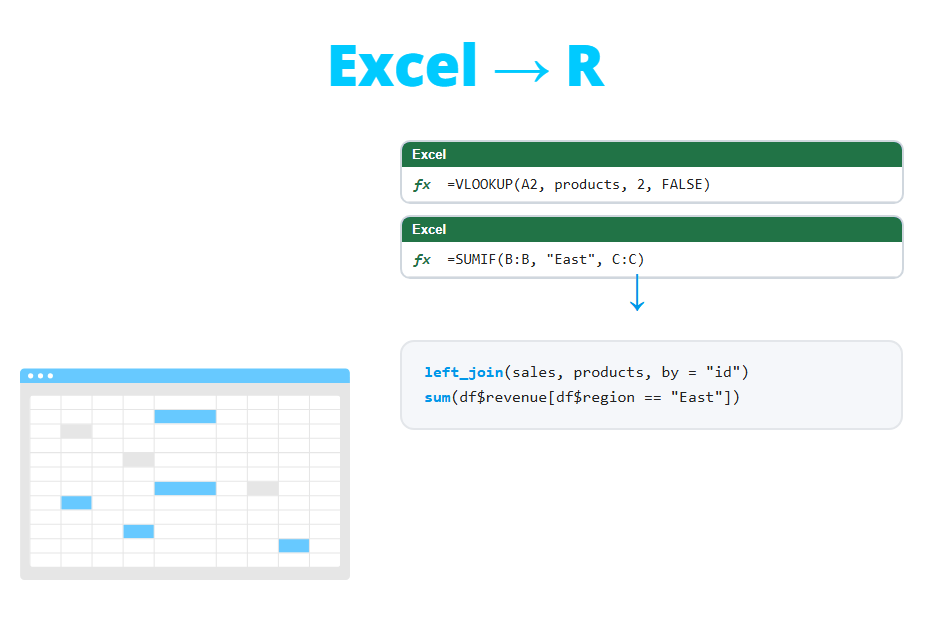
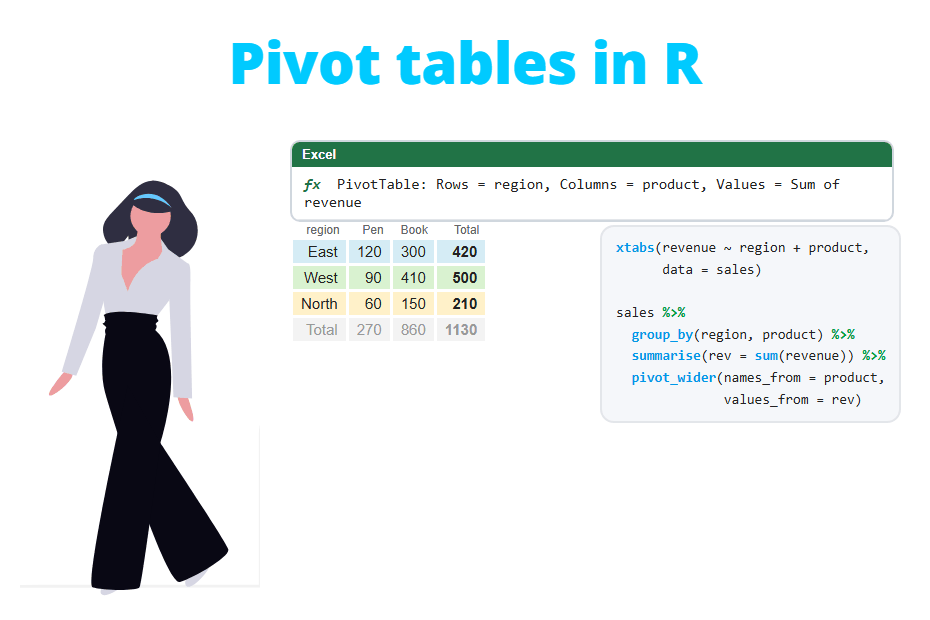
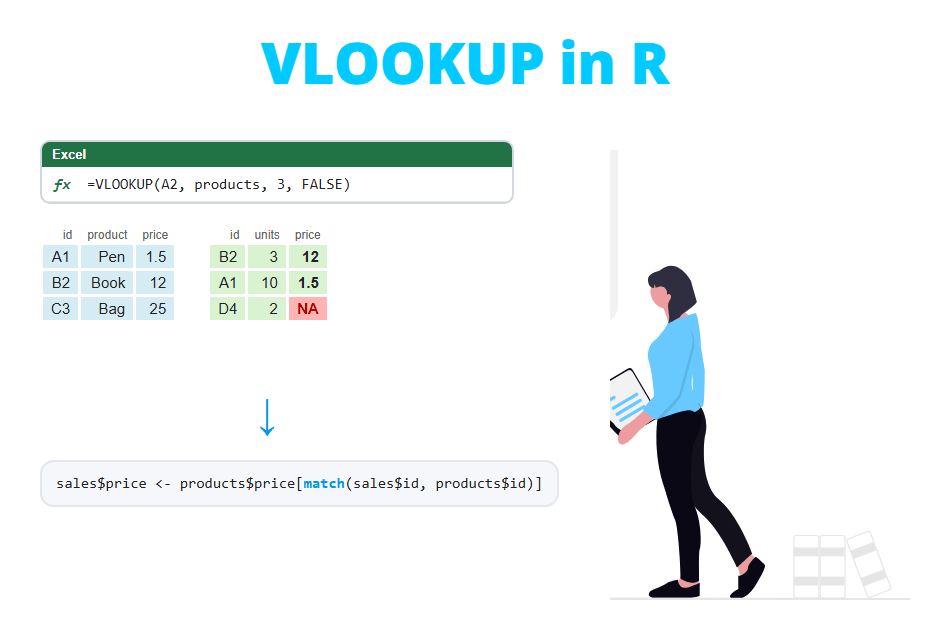
COUNTIF, SUMIF and AVERAGEIF in R
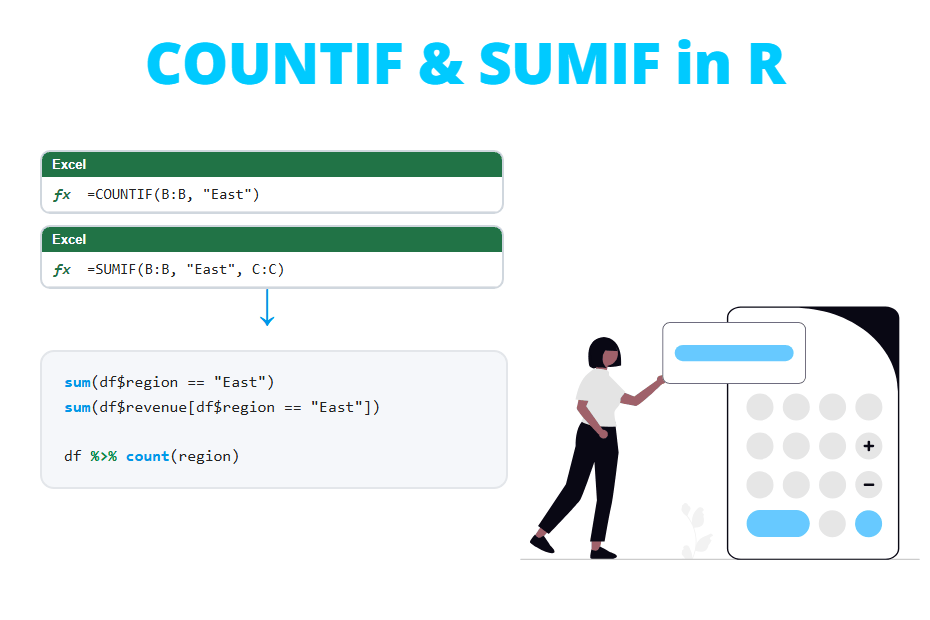
R has no COUNTIF, SUMIF or AVERAGEIF functions, and it doesn’t need them. A condition in R returns TRUE or FALSE for every row, and combining that logical vector with sum, mean or the brackets [] gives you every conditional formula of Excel in one short line. In this tutorial you will learn how to translate COUNTIF, COUNTIFS, SUMIF, SUMIFS, AVERAGEIF, MAXIFS and MINIFS to base R and dplyr, how to use text criteria and wildcards, how to deal with missing values and how to calculate them by group or as a new column.
Quick answer
Write the criterion as a condition and wrap it in the function you need. Assuming a data frame called orders with the columns region and amount:
# COUNTIF(region, "East")
sum(orders$region == "East")

# SUMIF(region, "East", amount)
sum(orders$amount[orders$region == "East"], na.rm = TRUE)

# AVERAGEIF(region, "East", amount)
mean(orders$amount[orders$region == "East"], na.rm = TRUE)
[1] 4
[1] 3050
[1] 1016.667The rest of the post explains why this works and covers several conditions, wildcards, missing values, results by group and the dplyr equivalents.
Sample data
We will use the following data frame with ten orders of a store. Each row has the sales rep, the region, the product, the amount of the order and its status. Note that the amount of the seventh order is missing (NA), like an empty cell in Excel.
orders <- data.frame(
  rep     = c("Ann", "Bob", "Ann", "Carl", "Bob", "Ann", "Dana", "Carl", "Bob", "Dana"),
  region  = c("East", "West", "East", "South", "West", "West", "East", "South", "East", "West"),
  product = c("Laptop Pro", "Phone", "Laptop", "Tablet", "Laptop Air",
              "Phone", "Tablet", "Phone", "Laptop", "Laptop Pro"),
  amount  = c(1200, 450, 900, 300, 1100, 500, NA, 480, 950, 1300),
  status  = c("Paid", "Paid", "Pending", "Paid", "Paid",
              "Cancelled", "Paid", "Pending", "Paid", "Paid")
)

orders
rep region product amount status
1 Ann East Laptop Pro 1200 Paid
2 Bob West Phone 450 Paid
3 Ann East Laptop 900 Pending
4 Carl South Tablet 300 Paid
5 Bob West Laptop Air 1100 Paid
6 Ann West Phone 500 Cancelled
7 Dana East Tablet NA Paid
8 Carl South Phone 480 Pending
9 Bob East Laptop 950 Paid
10 Dana West Laptop Pro 1300 PaidCOUNTIF in R
Count with sum(condition)
The Excel formula =COUNTIF(E2:E11, "Paid") counts how many orders are paid. In R you write the condition with == and sum it:
sum(orders$status == "Paid")[1] 7Why does summing count? Because the condition returns a logical vector, with one TRUE or FALSE per row:
orders$status == "Paid" [1] TRUE TRUE FALSE TRUE TRUE FALSE TRUE FALSE TRUE TRUEWhen you do arithmetic with logical values, R converts TRUE into 1 and FALSE into 0, so sum adds one for each row that meets the condition. This idea is behind every function of this tutorial.
Numeric criteria
Excel criteria like ">1000" or "<>Paid" become regular comparison operators in R: >, >=, <, <=, == and !=. For instance, =COUNTIF(D2:D11, ">1000"):
sum(orders$amount > 1000, na.rm = TRUE)[1] 3The na.rm = TRUE is needed because of the missing amount, as explained below. To count values between two numbers, which in Excel requires COUNTIFS, join two conditions with &:
# Orders between 500 and 1000 (both included)
sum(orders$amount >= 500 & orders$amount <= 1000, na.rm = TRUE)
[1] 3Text criteria: exact match
For text, use == for “equal to” and != for “not equal to” ("<>Paid" in Excel):
sum(orders$status != "Paid")[1] 3To count rows matching any of several values use %in%, which is much shorter than chaining |:
sum(orders$status %in% c("Pending", "Cancelled"))[1] 3Excel’s COUNTIF ignores upper and lower case, so “paid” and “PAID” are counted as “Paid”. In R, == is case-sensitive: sum(orders$status == "paid") returns 0. If your data mixes cases, compare in lower case with sum(tolower(orders$status) == "paid"). See tolower and toupper. Extra spaces, like “Paid”, also break the comparison: clean them with trimws.
Partial matches and wildcards with grepl
In Excel you count cells that contain a text with wildcards, like =COUNTIF(C2:C11, "*Laptop*"). In R the equivalent is the grepl function, which returns TRUE when the pattern appears anywhere in the text:
# Products that contain "Laptop" (*Laptop*)
sum(grepl("Laptop", orders$product))
[1] 5The pattern is a regular expression, so the other wildcards translate as follows:
| Excel criterion | Meaning | R condition |
|---|---|---|
"*Pro*" |
Contains “Pro” | grepl("Pro", x) |
"Laptop*" |
Starts with “Laptop” | grepl("^Laptop", x) or startsWith(x, "Laptop") |
"*Pro" |
Ends with “Pro” | grepl("Pro$", x) or endsWith(x, "Pro") |
"?????" |
Exactly 5 characters | nchar(x) == 5 |
"*laptop*" (any case) |
Contains, ignoring case | grepl("laptop", x, ignore.case = TRUE) |
For instance, the products that start with “Laptop” and end with “Pro”:
sum(grepl("^Laptop.*Pro$", orders$product))[1] 2If the text you look for contains special characters like ., ( or +, add fixed = TRUE so they are not read as regular expression symbols.
Criteria with missing values (NA)
Excel skips empty cells, but R doesn’t: comparing NA with anything returns NA, and the sum of a vector with an NA is also NA:
sum(orders$amount > 1000)[1] NAAdd na.rm = TRUE to ignore those rows. The same is.na function gives you the R version of COUNTBLANK and COUNTA:
# COUNTIF ignoring the missing values
sum(orders$amount > 1000, na.rm = TRUE)

# COUNTBLANK: number of missing values
sum(is.na(orders$amount))

# COUNTA: number of non-missing values
sum(!is.na(orders$amount))
[1] 3
[1] 1
[1] 9Learn more in the post about NA values in R.
COUNTIF for every category
In Excel you often write a list of categories and drag =COUNTIF($B$2:$B$11, G2) down to count each of them. In R you get all the counts at once with the table function:
table(orders$region) East South West
4 2 4 With dplyr, count returns the same counts as a data frame, and it accepts several columns, which gives you the counts of each combination (see count in dplyr):
library(dplyr)

orders %>% count(region, status)
region status n
1 East Paid 3
2 East Pending 1
3 South Paid 1
4 South Pending 1
5 West Cancelled 1
6 West Paid 3Combinations that don’t appear in the data, such as South and Cancelled, are not listed. If you want them as a cross table with zeros, use table(orders$region, orders$status) or check how to create a pivot table in R.
COUNTIFS: several conditions
COUNTIFS counts rows that meet all the conditions. In R, join them with & (AND). For instance, the paid orders of the East region:
# COUNTIFS(B2:B11, "East", E2:E11, "Paid")
sum(orders$region == "East" & orders$status == "Paid")
[1] 3Excel has no direct function for OR conditions (you have to add two COUNTIFs and be careful not to count a row twice). In R just use |, which counts each row once even if it meets both conditions:
# Orders of the East region OR with an amount over 1000
sum(orders$region == "East" | orders$amount > 1000, na.rm = TRUE)
[1] 6When the conditions get long, with saves you from repeating orders$ in every column:
with(orders, sum(region == "West" & status == "Paid" & amount > 400))[1] 3Wrap each group of conditions in parentheses when you mix & and |, since & is evaluated first: (region == "East" | region == "West") & status == "Paid".
SUMIF and SUMIFS
SUMIF sums the values of one column for the rows that meet a condition. In R, select the values with the condition inside brackets and sum them:
# SUMIF(E2:E11, "Paid", D2:D11)
sum(orders$amount[orders$status == "Paid"], na.rm = TRUE)
[1] 5300orders$amount[condition] keeps only the amounts where the condition is TRUE, and sum adds them up. The na.rm = TRUE is required because one of the paid orders has no amount.
For SUMIFS, put several conditions inside the brackets:
# SUMIFS(D2:D11, B2:B11, "East", E2:E11, "Paid")
sum(orders$amount[orders$region == "East" & orders$status == "Paid"], na.rm = TRUE)
[1] 2150Any criterion of the COUNTIF section works here too, wildcards included. For example, the revenue from any laptop model:
sum(orders$amount[grepl("Laptop", orders$product)], na.rm = TRUE)[1] 5450SUMIF and COUNTIF by group
Instead of one SUMIF per region, compute the sum of every region at once. The tapply function applies a function to a column split by groups:
tapply(orders$amount, orders$region, sum, na.rm = TRUE) East South West
3050 780 3350 To add a condition, like “only paid orders”, filter the rows first. The aggregate function has a subset argument for that:
aggregate(amount ~ region, data = orders, FUN = sum, subset = status == "Paid") region amount
1 East 2150
2 South 300
3 West 2850With the formula interface, aggregate drops the rows with NA before summing, so you don’t need na.rm here.
In dplyr, use summarise with .by. The best part is that you can calculate several conditional summaries in the same call, writing the condition inside each function:
orders %>%
  summarise(orders   = n(),
            n_paid   = sum(status == "Paid"),
            paid     = sum(amount[status == "Paid"], na.rm = TRUE),
            pending  = sum(amount[status == "Pending"], na.rm = TRUE),
            .by = region)
region orders n_paid paid pending
1 East 4 3 2150 900
2 West 4 3 2850 0
3 South 2 1 300 480This is exactly a COUNTIFS and several SUMIFS next to each other in an Excel summary table. Writing the condition inside sum instead of filtering first keeps all the groups, even the ones where nothing meets the condition (the West region has 0 pending in this case). If you filter(status == "Pending") before summarising, the West region would disappear from the result.
AVERAGEIF and AVERAGEIFS
AVERAGEIF works the same as SUMIF, changing sum for mean:
# AVERAGEIF(B2:B11, "East", D2:D11)
mean(orders$amount[orders$region == "East"], na.rm = TRUE)

# AVERAGEIFS(D2:D11, B2:B11, "East", E2:E11, "Paid")
mean(orders$amount[orders$region == "East" & orders$status == "Paid"], na.rm = TRUE)
[1] 1016.667
[1] 1075Here na.rm = TRUE matters even more than with sums: the East region has four orders but only three amounts, so the average is computed with three values, the same as Excel does with an empty cell. You can also use median or any other function of the mean post in the same way. By group, change sum for mean in any of the previous examples:
orders %>%
  summarise(avg_paid = mean(amount[status == "Paid"], na.rm = TRUE), .by = region)
region avg_paid
1 East 1075
2 West 950
3 South 300MAXIFS and MINIFS
The same pattern works for the largest and smallest values that meet a condition:
# MAXIFS(D2:D11, C2:C11, "Phone")
max(orders$amount[orders$product == "Phone"], na.rm = TRUE)

# MINIFS(D2:D11, E2:E11, "Paid")
min(orders$amount[orders$status == "Paid"], na.rm = TRUE)
[1] 500
[1] 300Be careful when no row meets the condition. Excel returns 0, while R returns -Inf for max (and Inf for min) with a warning:
max(orders$amount[orders$region == "North"], na.rm = TRUE)[1] -Inf
Warning message:
no non-missing arguments to max; returning -InfIf you want the whole row with the maximum, and not only the value, use which.max or slice_max from dplyr.
Add the result as a new column
A typical Excel sheet has a helper column with a formula like =COUNTIF($A$2:$A$11, A2) dragged down, so every row shows how many orders its sales rep has. In base R, the ave function does exactly that: it applies a function by group and returns a value for every row:
# COUNTIF($A$2:$A$11, A2): orders of the rep of each row
orders$rep_orders <- ave(seq_along(orders$rep), orders$rep, FUN = length)

# SUMIF($A$2:$A$11, A2, $D$2:$D$11): total amount of the rep of each row
orders$rep_total <- ave(orders$amount, orders$rep, FUN = function(x) sum(x, na.rm = TRUE))

orders[, c("rep", "amount", "rep_orders", "rep_total")]
rep amount rep_orders rep_total
1 Ann 1200 3 2600
2 Bob 450 3 2500
3 Ann 900 3 2600
4 Carl 300 2 780
5 Bob 1100 3 2500
6 Ann 500 3 2600
7 Dana NA 2 1300
8 Carl 480 2 780
9 Bob 950 3 2500
10 Dana 1300 2 1300We use seq_along(orders$rep) as the first argument because ave needs a numeric vector, and length simply counts its elements in each group.
In dplyr, use mutate with .by (or group_by). Unlike summarise, mutate keeps all the rows:
orders %>%
  mutate(rep_orders = n(),
         rep_total  = sum(amount, na.rm = TRUE),
         share      = round(amount / rep_total * 100, 1),
         .by = rep) %>%
  select(rep, amount, rep_orders, rep_total, share)
rep amount rep_orders rep_total share
1 Ann 1200 3 2600 46.2
2 Bob 450 3 2500 18.0
3 Ann 900 3 2600 34.6
4 Carl 300 2 780 38.5
5 Bob 1100 3 2500 44.0
6 Ann 500 3 2600 19.2
7 Dana NA 2 1300 NA
8 Carl 480 2 780 61.5
9 Bob 950 3 2500 38.0
10 Dana 1300 2 1300 100.0The share column shows the percentage that each order represents over its rep’s total, something that in Excel needs the SUMIF column plus a division.
Running count: COUNTIF($A$2:A2, A2)
With a half-fixed range, =COUNTIF($A$2:A2, A2) numbers the occurrences of each value: 1 the first time a rep appears, 2 the second time and so on. In dplyr this is row_number by group:
orders %>%
  mutate(occurrence = row_number(), .by = rep) %>%
  select(rep, region, occurrence)
rep region occurrence
1 Ann East 1
2 Bob West 1
3 Ann East 2
4 Carl South 1
5 Bob West 2
6 Ann West 3
7 Dana East 1
8 Carl South 2
9 Bob East 3
10 Dana West 2In base R the same column is ave(seq_along(orders$rep), orders$rep, FUN = seq_along). This is a common Excel trick to flag duplicates (occurrence > 1). In R you have specific functions for that, explained in unique and duplicated.
Percentage of rows that meet a condition
In Excel you calculate this as =COUNTIF(...)/COUNTA(...). In R, since TRUE is 1 and FALSE is 0, the mean of a condition is the proportion of rows that meet it:
mean(orders$status == "Paid")[1] 0.770% of the orders are paid. It works by group too:
orders %>%
  summarise(pct_paid = mean(status == "Paid") * 100, .by = region)
region pct_paid
1 East 75
2 West 75
3 South 50If the column has missing values, mean(orders$amount > 1000, na.rm = TRUE) gives the proportion over the non-missing values only, as Excel does with COUNTIF / COUNTA. Without na.rm = TRUE the result is NA.
Excel to R equivalence table
| Excel | Base R | dplyr (inside summarise or mutate) |
|---|---|---|
COUNTIF(B:B, "East") |
sum(df$region == "East") |
sum(region == "East") |
COUNTIF(D:D, ">1000") |
sum(df$amount > 1000, na.rm = TRUE) |
sum(amount > 1000, na.rm = TRUE) |
COUNTIF(C:C, "*Laptop*") |
sum(grepl("Laptop", df$product)) |
sum(grepl("Laptop", product)) |
COUNTIFS(B:B, "East", E:E, "Paid") |
sum(df$region == "East" & df$status == "Paid") |
sum(region == "East" & status == "Paid") |
| COUNTIF for each category | table(df$region) |
count(df, region) |
SUMIF(E:E, "Paid", D:D) |
sum(df$amount[df$status == "Paid"], na.rm = TRUE) |
sum(amount[status == "Paid"], na.rm = TRUE) |
| SUMIF for each category | tapply(df$amount, df$region, sum) |
summarise(total = sum(amount), .by = region) |
AVERAGEIF(B:B, "East", D:D) |
mean(df$amount[df$region == "East"], na.rm = TRUE) |
mean(amount[region == "East"], na.rm = TRUE) |
MAXIFS / MINIFS |
max(df$amount[cond]) / min(df$amount[cond]) |
max(amount[cond]) / min(amount[cond]) |
COUNTIF($A:$A, A2) dragged down |
ave(seq_along(df$rep), df$rep, FUN = length) |
mutate(n = n(), .by = rep) |
COUNTIF(...)/COUNTA(...) |
mean(df$status == "Paid") |
mean(status == "Paid") |
COUNTBLANK(D:D) |
sum(is.na(df$amount)) |
sum(is.na(amount)) |
Common errors
Error: unexpected ‘=’ in “sum(orders$status =”
In Excel a single = compares values, but in R a single = assigns arguments. Comparisons need a double equal sign, ==:
sum(orders$status = "Paid")Error: unexpected '=' in "sum(orders$status ="Write sum(orders$status == "Paid") instead.
The result is NA
If sum or mean returns NA, the column used in the condition or in the values has missing values. Add na.rm = TRUE, as explained in the NA section.
The count is 0 but there are matching rows
The text doesn’t match exactly: check upper and lower case, leading or trailing spaces and accents. Print unique(orders$status) to see the exact values that are stored in the column, and remember that == doesn’t accept wildcards: orders$product == "Laptop*" looks for the literal text “Laptop*“. Use grepl for partial matches.