Text to columns in R: split a column into several columns
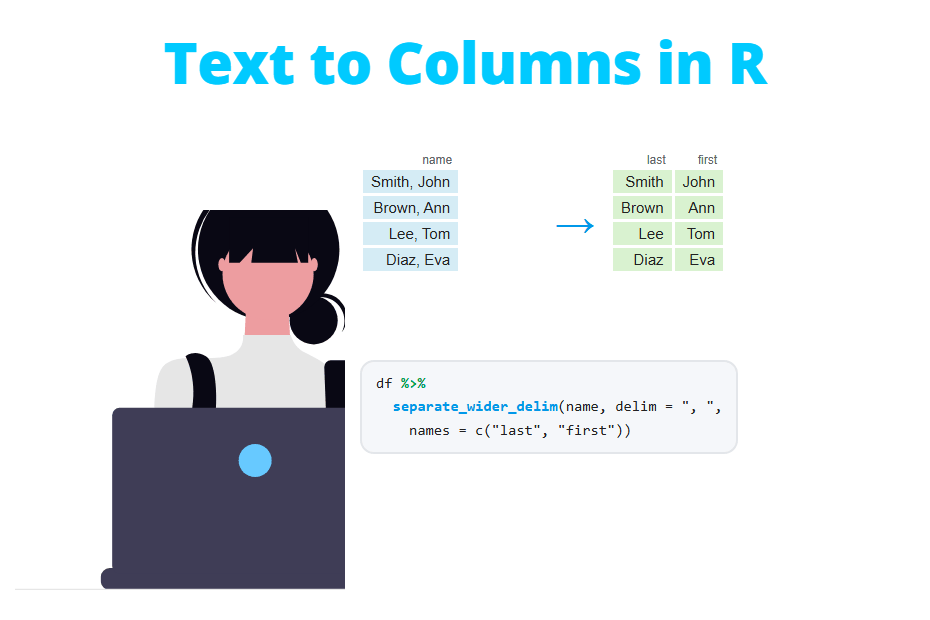
In Excel, Text to Columns takes a column such as "Smith, John" and splits it into two columns, Smith and John. In R there is no wizard, but there are a few functions that do the same and more: separate_wider_delim() and its siblings from tidyr, and strsplit() or read.table() in base R. In this tutorial you will learn how to split a column by a separator or by position, what to do when some rows have more pieces than others, how to turn the new columns into numbers and how to join them back together.
Quick answer
If your column has a separator, such as a comma, a dash or a space, use separate_wider_delim() from tidyr. Pass the column, the separator (delim) and the names of the new columns:
library(tidyr)

df <- data.frame(id = 1:3,
                 name = c("Smith, John", "Doe, Jane", "Brown, Bob"))

df |>
  separate_wider_delim(name, delim = ", ", names = c("last_name", "first_name"))
# A tibble: 3 × 3
id last_name first_name
<int> <chr> <chr>
1 1 Smith John
2 2 Doe Jane
3 3 Brown BobThe original column name is replaced by the new columns, in the same position. If you prefer base R and don’t want to install anything, read.table() does the same job:
new <- read.table(text = df$name, sep = ",", strip.white = TRUE,
                  col.names = c("last_name", "first_name"))

cbind(df, new)
id name last_name first_name
1 1 Smith, John Smith John
2 2 Doe, Jane Doe Jane
3 3 Brown, Bob Brown BobThe rest of the post explains each option in detail and the problems you will meet with real data.
From the Excel wizard to R
The Excel wizard asks you three questions: how the text is split, where the breaks are and which format each new column gets. Each of them has an equivalent in R:
| Excel (Text to Columns) | R |
|---|---|
| Delimited (comma, tab, space, other) |
separate_wider_delim(), strsplit(), read.table(sep = …)
|
| Fixed width |
separate_wider_position(), substr(), read.fwf()
|
| “Treat consecutive delimiters as one” |
A regular expression as separator, such as ” +“
|
| Column data format (General, Text, Date) |
type.convert(), as.numeric(), as.Date()
|
| “Do not import column (skip)” |
NA in the names argument
|
| Destination |
The new columns replace the original one (cols_remove = FALSE keeps it)
|
There is an important difference: in Excel you run the wizard once and the result is static. In R the split is code, so if next month you get a new file with the same structure, you run the same lines again. If you are moving from spreadsheets, the From Excel to R guide shows the equivalents of other common Excel tasks.
Split a column in base R
strsplit and do.call(rbind)
The strsplit function splits each string by a separator and returns a list, with one element per row:
df <- data.frame(id = 1:3,
                 name = c("Smith, John", "Doe, Jane", "Brown, Bob"))

parts <- strsplit(df$name, ", ")
parts
[[1]]
[1] "Smith" "John"
[[2]]
[1] "Doe" "Jane"
[[3]]
[1] "Brown" "Bob"A list is not a table yet. To turn it into one, pass each element to rbind with do.call, which stacks the pieces as the rows of a matrix:
m <- do.call(rbind, parts)
m
[,1] [,2]
[1,] "Smith" "John"
[2,] "Doe" "Jane"
[3,] "Brown" "Bob"Now give names to the columns and bind them to the original data frame with cbind:
colnames(m) <- c("last_name", "first_name")
df2 <- cbind(df, m)
df2
id name last_name first_name
1 1 Smith, John Smith John
2 2 Doe, Jane Doe Jane
3 3 Brown, Bob Brown BobThis method works, but it has two weak points: all the new columns are character, even if they contain numbers, and it gives wrong results without an error when some rows have a different number of pieces (you will see this below).
read.table(text = …): the closest thing to the wizard
read.table is the function that reads text files, like read.csv. With the text argument it reads a character vector instead of a file, so each element is treated as a line and split by sep. This is exactly what Excel does with the “Delimited” option, and it also guesses the type of each column, like the “General” format:
codes <- c("AB-123-X", "CD-456-Y", "EF-789-Z")

new <- read.table(text = codes, sep = "-",
                  col.names = c("prefix", "number", "suffix"))
new
str(new)
prefix number suffix
1 AB 123 X
2 CD 456 Y
3 EF 789 Z
'data.frame': 3 obs. of 3 variables:
$ prefix: chr "AB" "CD" "EF"
$ number: int 123 456 789
$ suffix: chr "X" "Y" "Z"The number column is already an integer. Some useful arguments:
strip.white = TRUEremoves the spaces around each piece (withsep = ","," John"becomes"John").colClasses = "character"keeps everything as text, which is what you want for codes with leading zeros.quote = ""disables quotes. By default'and"are treated as quotes, so a value like"O'Brien, Pat"breaks the reading with the errorincomplete final line found by readTableHeader on 'text'.
Split a column with tidyr
separate_wider_delim()
The tidyr package has three functions to split a column into several: separate_wider_delim() (by a separator), separate_wider_position() (by position) and separate_wider_regex() (with a regular expression). They work inside a pipeline and return a tibble.
library(tidyr)

products <- data.frame(code = c("AB-123-X", "CD-456-Y", "EF-789-Z"),
                       units = c(10, 5, 8))

products |>
  separate_wider_delim(code, delim = "-", names = c("prefix", "number", "suffix"))
# A tibble: 3 × 4
prefix number suffix units
<chr> <chr> <chr> <dbl>
1 AB 123 X 10
2 CD 456 Y 5
3 EF 789 Z 8Notice that delim is a fixed string, not a regular expression. "-" and "." are matched literally, which avoids a classic mistake with strsplit, where "." means “any character”.
Keep the original column, skip pieces or name them automatically
There are three arguments you will use often:
cols_remove = FALSEkeeps the original column (in Excel, choosing another destination).NAinsidenamesdrops that piece (in Excel, “Do not import column”).names_sepcreates the names automatically from the original name when you don’t want to type them.
# Keep the original column
products |>
  separate_wider_delim(code, delim = "-", names = c("prefix", "number", "suffix"),
                       cols_remove = FALSE)

# Drop the middle piece
products |>
  separate_wider_delim(code, delim = "-", names = c("prefix", NA, "suffix"))

# Automatic names: code_1, code_2, code_3
products |>
  separate_wider_delim(code, delim = "-", names_sep = "_")
# A tibble: 3 × 5
prefix number suffix code units
<chr> <chr> <chr> <chr> <dbl>
1 AB 123 X AB-123-X 10
2 CD 456 Y CD-456-Y 5
3 EF 789 Z EF-789-Z 8
# A tibble: 3 × 3
prefix suffix units
<chr> <chr> <dbl>
1 AB X 10
2 CD Y 5
3 EF Z 8
# A tibble: 3 × 4
code_1 code_2 code_3 units
<chr> <chr> <chr> <dbl>
1 AB 123 X 10
2 CD 456 Y 5
3 EF 789 Z 8What about separate()?
Many tutorials and answers online use separate():
products |>
  separate(code, into = c("prefix", "number", "suffix"), sep = "-", convert = TRUE)
prefix number suffix units
1 AB 123 X 10
2 CD 456 Y 5
3 EF 789 Z 8It still works, but since tidyr 1.3.0 it is superseded: it won’t be removed, but it won’t get new features either. The separate_wider_*() functions replace it because separate() mixes two different things in one argument: sep is a regular expression when it is a string and a position when it is a number. For new code, use separate_wider_delim() or separate_wider_position().
Rows with more or fewer pieces than expected
In real data not every row has the same number of pieces. In the following data frame the second code has only two parts and the third one has four:
products2 <- data.frame(code = c("AB-123-X", "CD-456", "EF-789-Z-01"))

products2 |>
  separate_wider_delim(code, delim = "-", names = c("prefix", "number", "suffix"))
Error in `separate_wider_delim()`:
! Expected 3 pieces in each element of `code`.
! 1 value was too short.
ℹ Use `too_few = "debug"` to diagnose the problem.
ℹ Use `too_few = "align_start"/"align_end"` to silence this message.
! 1 value was too long.
ℹ Use `too_many = "debug"` to diagnose the problem.
ℹ Use `too_many = "drop"/"merge"` to silence this message.This error is a good thing: tidyr refuses to guess and tells you how many rows are too short and how many are too long. The message also suggests the solution. First, find the problematic rows with "debug", which adds three columns: whether the row is OK, how many pieces it has and what was left over:
products2 |>
  separate_wider_delim(code, delim = "-", names = c("prefix", "number", "suffix"),
                       too_few = "debug", too_many = "debug")
# A tibble: 3 × 7
prefix number suffix code code_ok code_pieces code_remainder
<chr> <chr> <chr> <chr> <lgl> <int> <chr>
1 AB 123 X AB-123-X TRUE 3 ""
2 CD 456 <NA> CD-456 FALSE 2 ""
3 EF 789 Z EF-789-Z-01 FALSE 4 "-01"
Warning message:
Debug mode activated: adding variables `code_ok`, `code_pieces`, and
`code_remainder`.Once you know what is going on, choose what to do with each case:
too_few = "align_start"fills the missing pieces on the right withNA, and"align_end"fills them on the left.too_many = "drop"discards the extra pieces andtoo_many = "merge"keeps them together in the last column.
products2 |>
  separate_wider_delim(code, delim = "-", names = c("prefix", "number", "suffix"),
                       too_few = "align_start", too_many = "merge")
# A tibble: 3 × 3
prefix number suffix
<chr> <chr> <chr>
1 AB 123 X
2 CD 456 <NA>
3 EF 789 Z-01With "merge" the last code keeps its suffix Z-01 complete. With "drop" you would get only Z and lose -01 silently, so use it only when you are sure the extra pieces are not needed.
Now look at what base R does with the same data. do.call(rbind) doesn’t fail: it recycles the short rows to fill the matrix, and the only clue is a warning:
do.call(rbind, strsplit(products2$code, "-")) [,1] [,2] [,3] [,4]
[1,] "AB" "123" "X" "AB"
[2,] "CD" "456" "CD" "456"
[3,] "EF" "789" "Z" "01"
Warning message:
In (function (..., deparse.level = 1) :
number of columns of result is not a multiple of vector length (arg 1)The second row now has CD as suffix, which is invented data. read.table needs fill = TRUE for uneven rows. Set header = FALSE and the column names explicitly too, because when the first line has one field less than the rest, read.table assumes it is a header:
read.table(text = products2$code, sep = "-", fill = TRUE, header = FALSE,
           col.names = c("prefix", "number", "suffix", "extra"))
prefix number suffix extra
1 AB 123 X NA
2 CD 456 NA
3 EF 789 Z 1Don’t split uneven data with do.call(rbind, strsplit(...)). It recycles the pieces without an error and the result looks correct at first sight. Also note that in the last output read.table turned "01" into the number 1. With uneven data, separate_wider_delim() is the safest option because it stops and shows you the problem.
Convert the new columns to numbers
separate_wider_delim() always returns character columns. Look at number in the previous examples: it is <chr>, so you can’t add it or compute its mean. You have two options. Convert one column with as.integer or as.numeric, or let R guess the type of all the columns with type.convert(), which is the equivalent of the “General” format in Excel:
products |>
  separate_wider_delim(code, delim = "-", names = c("prefix", "number", "suffix")) |>
  type.convert(as.is = TRUE)
# A tibble: 3 × 4
prefix number suffix units
<chr> <int> <chr> <int>
1 AB 123 X 10
2 CD 456 Y 5
3 EF 789 Z 8as.is = TRUE keeps text as character instead of converting it to factor. Notice that type.convert() is applied to all the columns, so units also changed from <dbl> to <int>. If you only want to convert the new column, use mutate: mutate(number = as.integer(number)). The superseded separate() does the conversion with convert = TRUE, as you saw before.
Keep codes as text. Converting "007" to a number gives 7, the same as Excel does when a column is set to “General”. Product codes, ZIP codes or IDs with leading zeros must stay as character. In read.table use colClasses = "character".
Split by position (fixed width)
The second option of the Excel wizard, Fixed width, splits the text at given positions. It is used for identifiers where each part always has the same length. For example, in "ES2024001" the first two characters are the country, the next four the year and the last three a number.
In base R you can extract each part with substr, passing the first and last position:
ids <- data.frame(id = c("ES2024001", "FR2023117", "IT2024052"))

ids$country <- substr(ids$id, 1, 2)
ids$year <- substr(ids$id, 3, 6)
ids$number <- substr(ids$id, 7, 9)
ids
id country year number
1 ES2024001 ES 2024 001
2 FR2023117 FR 2023 117
3 IT2024052 IT 2024 052With tidyr, separate_wider_position() takes the widths of the pieces instead of the positions, which is easier to read. Unnamed widths are dropped:
library(tidyr)

ids <- data.frame(id = c("ES2024001", "FR2023117", "IT2024052"))

ids |>
  separate_wider_position(id, widths = c(country = 2, year = 4, number = 3))

# Skip the year
ids |>
  separate_wider_position(id, widths = c(country = 2, 4, number = 3))
# A tibble: 3 × 3
country year number
<chr> <chr> <chr>
1 ES 2024 001
2 FR 2023 117
3 IT 2024 052
# A tibble: 3 × 2
country number
<chr> <chr>
1 ES 001
2 FR 117
3 IT 052If a value is shorter than the sum of the widths you get the error Expected 9 characters in each element of 'id', and you can use too_few = "align_start" as before. To read a whole file with fixed width columns, use read.fwf(), but remember that it converts types, so "001" would become 1.
Split with a regular expression
Sometimes there is no separator at all, as in "Apples 12kg", where the number and the unit are stuck together. separate_wider_regex() describes each piece with a regular expression. Named patterns become columns and unnamed ones are matched and discarded:
fruits <- data.frame(item = c("Apples 12kg", "Pears 7kg", "Oranges 25kg"))

fruits |>
  separate_wider_regex(item, patterns = c(fruit = "[A-Za-z]+", " ",
                                          weight = "[0-9]+", unit = "[a-z]+"))
# A tibble: 3 × 3
fruit weight unit
<chr> <chr> <chr>
1 Apples 12 kg
2 Pears 7 kg
3 Oranges 25 kgThe pattern must match the whole string. If a value doesn’t match, you get the error Expected each value of 'item' to match the pattern, the whole pattern, and nothing but the pattern. Note that [A-Za-z] doesn’t include accented letters, so a value like "Café" would fail: use "[[:alpha:]]+" instead. In base R, strsplit also accepts regular expressions as separator.
Remove the extra spaces
Excel’s wizard leaves the spaces after the separator, and so does R. When the data has been typed by hand, the spaces around the separator are not consistent:
df <- data.frame(name = c("Smith,John", "Doe, Jane", "Brown ,  Bob"))

df |>
  separate_wider_delim(name, delim = ",", names = c("last_name", "first_name"))
# A tibble: 3 × 2
last_name first_name
<chr> <chr>
1 "Smith" "John"
2 "Doe" " Jane"
3 "Brown " " Bob"The tibble shows the values in quotes precisely because some of them have leading or trailing spaces. A filter like first_name == "Jane" would find nothing. There are two fixes. The first one is to apply trimws to the new columns. The second one is to use a regular expression as separator, which accepts any number of spaces around the comma. To do this, wrap the pattern in stringr::regex():
df |>
  separate_wider_delim(name, delim = stringr::regex(" *, *"),
                       names = c("last_name", "first_name"))
# A tibble: 3 × 2
last_name first_name
<chr> <chr>
1 Smith John
2 Doe Jane
3 Brown BobIn base R, read.table(..., strip.white = TRUE) does the same, or you can apply trimws to every column with df2[] <- lapply(df2, trimws).
Split into rows instead of columns
Sometimes a cell contains a list of values, like the products of an order: "pen, notebook". Splitting them into columns makes no sense, because each order has a different number of products. What you need is one row per product, and that is what separate_longer_delim() does:
orders <- data.frame(order = c(101, 102, 103),
                     products = c("pen, notebook", "pen", "stapler, pen, glue"))

orders |>
  separate_longer_delim(products, delim = ", ")
order products
1 101 pen
2 101 notebook
3 102 pen
4 103 stapler
5 103 pen
6 103 glueThe values of the other columns are repeated in each new row. In this long format you can count how many times each product was ordered or join the data with other tables. There is also separate_longer_position() to split into rows by width. If you need to reshape a whole table between wide and long format, see pivot_longer and pivot_wider.
Split a date into year, month and day
A date stored as text, like "2024-03-15", can be split with "-" as with any other string:
sales <- data.frame(date = c("2024-03-15", "2024-11-02", "2025-01-28"),
                    amount = c(250, 120, 310))

sales |>
  separate_wider_delim(date, delim = "-", names = c("year", "month", "day"),
                       cols_remove = FALSE) |>
  type.convert(as.is = TRUE)
# A tibble: 3 × 5
year month day date amount
<int> <int> <int> <chr> <int>
1 2024 3 15 2024-03-15 250
2 2024 11 2 2024-11-02 120
3 2025 1 28 2025-01-28 310This works because the format is fixed, but it is better to convert the column to a date with as.Date and extract the parts with format. This way R also checks that the dates are valid, and you can compute differences between dates or group by month. Read how to work with dates in R to learn the format codes.
d <- as.Date(sales$date)

sales$year <- as.integer(format(d, "%Y"))
sales$month <- as.integer(format(d, "%m"))
sales$day <- as.integer(format(d, "%d"))
sales
date amount year month day
1 2024-03-15 250 2024 3 15
2 2024-11-02 120 2024 11 2
3 2025-01-28 310 2025 1 28The reverse: join columns like CONCATENATE
To join several columns into one, as with CONCATENATE, CONCAT or the & operator in Excel, use paste in base R or unite() in tidyr:
people <- data.frame(first_name = c("John", "Jane", "Bob"),
                     last_name = c("Smith", "Doe", "Brown"))

# Base R
paste(people$last_name, people$first_name, sep = ", ")

# tidyr
people |>
  unite(full_name, last_name, first_name, sep = ", ")
[1] "Smith, John" "Doe, Jane" "Brown, Bob"
full_name
1 Smith, John
2 Doe, Jane
3 Brown, Bobunite() removes the original columns. Add remove = FALSE to keep them. The two functions behave differently with missing values: paste writes the text "NA", while unite() can skip them with na.rm = TRUE:
parts <- data.frame(a = c("AB", "CD"), b = c("123", NA), c = c("X", "Y"))

paste(parts$a, parts$b, parts$c, sep = "-")

parts |>
  unite(code, a, b, c, sep = "-", na.rm = TRUE)
[1] "AB-123-X" "CD-NA-Y"
code
1 AB-123-X
2 CD-YWhich method should you use?
| Method | Splits by | Converts types | Uneven pieces | Best for |
|---|---|---|---|---|
separate_wider_delim()
|
Separator |
No (use type.convert)
|
Error, or too_few / too_many
|
Most cases, inside a pipeline |
separate_wider_position()
|
Widths | No |
Error, or too_few / too_many
|
Fixed width codes |
separate_wider_regex()
|
Regular expression | No |
Error, or too_few
|
Text without a clear separator |
separate_longer_delim()
|
Separator | No | Not a problem (rows) | Lists of values in a cell |
read.table(text = …)
|
Separator | Yes |
Error, or fill = TRUE
|
Base R, quick conversion |
strsplit() + do.call(rbind)
|
Separator or regex | No | Recycles without an error | Base R, regular data only |
substr()
|
Positions | No | Returns shorter strings | Base R, fixed width |
separate()
|
Regex or positions |
With convert = TRUE
|
Warning and NA
|
Old code (superseded) |
In short: use separate_wider_delim() by default, because it stops when the data doesn’t match what you expect. Use read.table(text = ...) if you want base R and automatic types, and separate_longer_delim() when each cell contains a list of values that should be rows.