How to do a VLOOKUP in R (and INDEX MATCH and XLOOKUP)
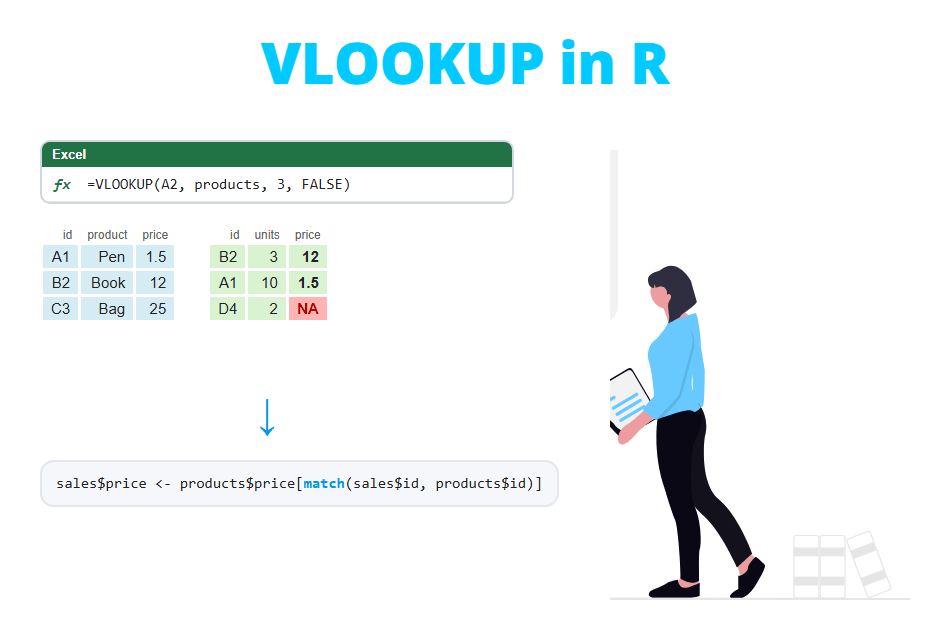
There is no VLOOKUP function in R, but you don’t need one: the match function, merge and left_join from dplyr do the same job for a whole column at once, without dragging any formula down. In this tutorial you will learn the three methods, how to bring several columns in one step, what to do with the #N/A values (NA in R), why duplicated keys change the result, how to do an approximate match like VLOOKUP(..., TRUE) and how to translate INDEX MATCH and XLOOKUP to R.
Quick answer: VLOOKUP in R
If you have a sales table with a product_id column and a products table with the price of each product, the Excel formula =VLOOKUP(B2, products!A:D, 4, FALSE) translates to R as any of these lines:
# Base R: match() + indexing (returns a vector)
sales$price <- products$price[match(sales$product_id, products$product_id)]

# Base R: merge() (returns a data frame)
merge(sales, products, by = "product_id", all.x = TRUE)

# dplyr: left_join() (returns a data frame)
library(dplyr)
left_join(sales, products, by = "product_id")
Use match when you only need one column, and left_join when you need several columns or you are already working with dplyr. The code is the same in RStudio or in any other editor: RStudio is just the interface, the functions belong to R.
Sample data
In this tutorial we will use two small tables, as you would have in two sheets of a workbook. The products table is the lookup table (the range of the VLOOKUP) and the sales table is the table where you want to add the information. Note that product A05 doesn’t exist in the products table and that A02 was sold twice.
products <- data.frame(product_id = c("A01", "A02", "A03", "A04"),
                       product = c("Keyboard", "Mouse", "Monitor", "Webcam"),
                       category = c("Accessories", "Accessories", "Screens", "Video"),
                       price = c(25, 12, 180, 60))

sales <- data.frame(order = 1:6,
                    product_id = c("A02", "A01", "A03", "A05", "A02", "A04"),
                    units = c(3, 1, 2, 5, 4, 1))

products
sales
product_id product category price
1 A01 Keyboard Accessories 25
2 A02 Mouse Accessories 12
3 A03 Monitor Screens 180
4 A04 Webcam Video 60
order product_id units
1 1 A02 3
2 2 A01 1
3 3 A03 2
4 4 A05 5
5 5 A02 4
6 6 A04 1VLOOKUP with match()
The closest equivalent of an exact VLOOKUP in base R is the combination of match and indexing. match(x, table) returns, for each element of x, the position of its first match in table, or NA if there is no match:
match(sales$product_id, products$product_id)[1] 2 1 3 NA 2 4Read the output as “the first order is for the product in row 2 of products, the second order for the product in row 1…” and so on. The fourth value is NA because A05 is not in the lookup table. Once you have the row numbers, you can use them to extract any column of the lookup table:
# VLOOKUP of the price
sales$price <- products$price[match(sales$product_id, products$product_id)]

sales
order product_id units price
1 1 A02 3 12
2 2 A01 1 25
3 3 A03 2 180
4 4 A05 5 NA
5 5 A02 4 12
6 6 A04 1 60This single line replaces a VLOOKUP dragged down the whole column. Besides, unlike Excel, you don’t need to count the column number (the 4 of the VLOOKUP): you choose the column by its name, so the code doesn’t break if someone inserts a new column in the lookup table.
Once the price is in the table, the rest of the calculations are also vectorized. For instance, the total of each order is:
sales$total <- sales$units * sales$price

sales
order product_id units price total
1 1 A02 3 12 36
2 2 A01 1 25 25
3 3 A03 2 180 360
4 4 A05 5 NA NA
5 5 A02 4 12 48
6 6 A04 1 60 60In the following sections we will start again from the original sales table, so remove the two new columns with sales$price <- NULL and sales$total <- NULL if you are running the code.
VLOOKUP with merge()
The merge function joins two data frames by a common column. To keep all the rows of the sales table, as a VLOOKUP does, set all.x = TRUE (a left join). Without it, the orders whose product is not found would be dropped.
merge(sales, products, by = "product_id", all.x = TRUE) product_id order units product category price
1 A01 2 1 Keyboard Accessories 25
2 A02 1 3 Mouse Accessories 12
3 A02 5 4 Mouse Accessories 12
4 A03 3 2 Monitor Screens 180
5 A04 6 1 Webcam Video 60
6 A05 4 5 <NA> <NA> NAmerge adds all the columns of products at once, but notice two differences with Excel: the key column is moved to the first position and the rows are sorted by the key, so the order of the sales has changed. If the original order matters, sort the result again with order:
res <- merge(sales, products, by = "product_id", all.x = TRUE)
res[order(res$order), ]
product_id order units product category price
2 A02 1 3 Mouse Accessories 12
1 A01 2 1 Keyboard Accessories 25
4 A03 3 2 Monitor Screens 180
6 A05 4 5 <NA> <NA> NA
3 A02 5 4 Mouse Accessories 12
5 A04 6 1 Webcam Video 60VLOOKUP with left_join() from dplyr
The left_join function from dplyr is the most readable option and the one most people use today. It keeps all the rows of the first table in their original order and adds the columns of the second one. Unmatched rows get NA, just like with merge(all.x = TRUE). You can learn about the rest of the joins in the dplyr joins tutorial.
library(dplyr)

sales %>%
  left_join(products, by = "product_id")
order product_id units product category price
1 1 A02 3 Mouse Accessories 12
2 2 A01 1 Keyboard Accessories 25
3 3 A03 2 Monitor Screens 180
4 4 A05 5 <NA> <NA> NA
5 5 A02 4 Mouse Accessories 12
6 6 A04 1 Webcam Video 60If the key column has a different name in each table (for instance product_id and code), use by = join_by(product_id == code).
Look up several columns at once
In Excel you need one VLOOKUP per column (or a VLOOKUP with an array of column numbers). In R, a join brings all the columns of the lookup table, so if you only want some of them, select them before joining with select:
sales %>%
  left_join(products %>% select(product_id, product, price),
            by = "product_id")
order product_id units product price
1 1 A02 3 Mouse 12
2 2 A01 1 Keyboard 25
3 3 A03 2 Monitor 180
4 4 A05 5 <NA> NA
5 5 A02 4 Mouse 12
6 6 A04 1 Webcam 60With base R you can compute the positions once with match and use them to assign several columns in a single step:
idx <- match(sales$product_id, products$product_id)
sales_2 <- sales
sales_2[c("product", "price")] <- products[idx, c("product", "price")]

sales_2
order product_id units product price
1 1 A02 3 Mouse 12
2 2 A01 1 Keyboard 25
3 3 A03 2 Monitor 180
4 4 A05 5 <NA> NA
5 5 A02 4 Mouse 12
6 6 A04 1 Webcam 60Values not found: #N/A in Excel vs NA in R
When a VLOOKUP doesn’t find the value, Excel returns the #N/A error. R returns NA, the missing value, and keeps going. This is more convenient, but you have to take it into account: as you saw before, the total of the order with NA price is also NA, and a sum of that column would return NA unless you set na.rm = TRUE. Learn more about this in the tutorial about NA values in R.
The IFERROR equivalent
The typical =IFERROR(VLOOKUP(...), "Not found") is done in R by replacing the NA after the lookup. With dplyr, use coalesce, which returns the first non-missing value:
sales %>%
  left_join(products, by = "product_id") %>%
  mutate(product = coalesce(product, "Not found"),
         price = coalesce(price, 0))
order product_id units product category price
1 1 A02 3 Mouse Accessories 12
2 2 A01 1 Keyboard Accessories 25
3 3 A03 2 Monitor Screens 180
4 4 A05 5 Not found <NA> 0
5 5 A02 4 Mouse Accessories 12
6 6 A04 1 Webcam Video 60In base R the same idea is written with ifelse and is.na:
p <- products$product[match(sales$product_id, products$product_id)]
ifelse(is.na(p), "Not found", p)
[1] "Mouse" "Keyboard" "Monitor" "Not found" "Mouse" "Webcam"Think twice before replacing a missing price with 0. In Excel it is common to hide the #N/A with IFERROR, but a price of 0 is not the same as an unknown price: it will lower any average. Replace the NA only when the replacement has a meaning, and look first at which keys failed.
Find the keys that don’t match
Before hiding the NA, it is a good idea to list the rows that didn’t find a match. anti_join returns the rows of the first table without a match in the second one. In base R you can use %in%:
anti_join(sales, products, by = "product_id")

# Base R
sales[!sales$product_id %in% products$product_id, ]
order product_id units
1 4 A05 5
order product_id units
4 4 A05 5Duplicated keys: first match vs all matches
This is the most important difference between VLOOKUP and a join. Suppose the products table has the product A02 twice, with an old and a new price:
products_dup <- rbind(products,
                      data.frame(product_id = "A02", product = "Mouse (new)",
                                 category = "Accessories", price = 15))
products_dup
product_id product category price
1 A01 Keyboard Accessories 25
2 A02 Mouse Accessories 12
3 A03 Monitor Screens 180
4 A04 Webcam Video 60
5 A02 Mouse (new) Accessories 15A VLOOKUP returns the first match and ignores the rest. match behaves exactly the same way, so the orders of A02 get the price 12:
products_dup$price[match(sales$product_id, products_dup$product_id)][1] 12 25 180 NA 12 60A join, however, returns all the matches, so each order of A02 is duplicated and the table goes from 6 to 8 rows. dplyr warns you about it:
left_join(sales, products_dup, by = "product_id") order product_id units product category price
1 1 A02 3 Mouse Accessories 12
2 1 A02 3 Mouse (new) Accessories 15
3 2 A01 1 Keyboard Accessories 25
4 3 A03 2 Monitor Screens 180
5 4 A05 5 <NA> <NA> NA
6 5 A02 4 Mouse Accessories 12
7 5 A02 4 Mouse (new) Accessories 15
8 6 A04 1 Webcam Video 60
Warning message:
In left_join(sales, products_dup, by = "product_id") :
Detected an unexpected many-to-many relationship between `x` and `y`.
ℹ Row 1 of `x` matches multiple rows in `y`.
ℹ Row 2 of `y` matches multiple rows in `x`.
ℹ If a many-to-many relationship is expected, set `relationship =
"many-to-many"` to silence this warning.If you add up the units of this table you would count the mouse sales twice. To reproduce the behavior of VLOOKUP, use multiple = "first" (available since dplyr 1.1.0), or multiple = "last" if you want the newest price:
left_join(sales, products_dup, by = "product_id", multiple = "first") order product_id units product category price
1 1 A02 3 Mouse Accessories 12
2 2 A01 1 Keyboard Accessories 25
3 3 A03 2 Monitor Screens 180
4 4 A05 5 <NA> <NA> NA
5 5 A02 4 Mouse Accessories 12
6 6 A04 1 Webcam Video 60In practice, a duplicated key in a lookup table is usually an error. Find the repeated keys with count and keep only the first row of each key with duplicated or distinct before the lookup. You have more options in how to remove duplicates in R.
# Which keys are repeated?
products_dup %>%
  count(product_id) %>%
  filter(n > 1)

# Keep the first row of each key
products_dup[!duplicated(products_dup$product_id), ]
product_id n
1 A02 2
product_id product category price
1 A01 Keyboard Accessories 25
2 A02 Mouse Accessories 12
3 A03 Monitor Screens 180
4 A04 Webcam Video 60Approximate match: VLOOKUP with TRUE
With the last argument set to TRUE (range lookup), VLOOKUP doesn’t look for the exact value: it returns the row of the largest value that is less than or equal to the lookup value. It is the typical formula for tax brackets, commissions or grades. Consider the following grades table and some students:
grades <- data.frame(min_score = c(0, 5, 7, 9),
                     grade = c("Fail", "Pass", "Merit", "Distinction"))

students <- data.frame(student = c("Ana", "Ben", "Carla", "David", "Eva"),
                       score = c(4.5, 7, 9.5, 6.9, 5))
findInterval()
findInterval(x, vec) returns, for each value of x, the position of the last element of vec that is less than or equal to it, which is exactly what VLOOKUP with TRUE does. As in Excel, the lookup column must be sorted in ascending order.
findInterval(students$score, grades$min_score)

data.frame(students,
           grade = grades$grade[findInterval(students$score, grades$min_score)])
[1] 1 3 4 2 2
student score grade
1 Ana 4.5 Fail
2 Ben 7.0 Merit
3 Carla 9.5 Distinction
4 David 6.9 Pass
5 Eva 5.0 PassNote that the limits are inclusive on the left: a score of exactly 7 gets “Merit” and 6.9 gets “Pass”, as in Excel.
If a value is lower than the first limit, findInterval returns 0 and indexing with 0 silently drops the element instead of returning NA: grades$grade[findInterval(c(-1, 4.5), grades$min_score)] returns only "Fail", a vector of length 1 instead of 2. Make sure that the first limit covers all the possible values (for instance, -Inf) or use cut, which returns NA.
cut()
The cut function converts a numeric variable into intervals. To get the same intervals as VLOOKUP, pass the limits plus Inf as breaks and set right = FALSE so the intervals are closed on the left:
cut(students$score, breaks = c(grades$min_score, Inf),
    labels = grades$grade, right = FALSE)
[1] Fail Merit Distinction Pass Pass
Levels: Fail Pass Merit DistinctionThe result is a factor with the grades in the order of the table, which is handy for tables and plots.
Rolling join with dplyr
Since dplyr 1.1.0 you can also do the approximate match with a join, using join_by and closest. The condition closest(score >= min_score) takes, for each student, the closest min_score that is less than or equal to the score:
students %>%
  left_join(grades, by = join_by(closest(score >= min_score)))
student score min_score grade
1 Ana 4.5 0 Fail
2 Ben 7.0 7 Merit
3 Carla 9.5 9 Distinction
4 David 6.9 5 Pass
5 Eva 5.0 5 PassUnlike VLOOKUP and findInterval, the rolling join doesn’t need the lookup table to be sorted.
INDEX MATCH and XLOOKUP in R
The INDEX MATCH combination is in fact what you have been doing with match: MATCH returns the position and INDEX extracts the value in that position. The translation is direct:
# Excel: =INDEX(products!D:D, MATCH("Monitor", products!B:B, 0))
products$price[match("Monitor", products$product)]
[1] 180Lookup to the left
VLOOKUP can only return columns to the right of the lookup column. That’s why people use INDEX MATCH to look to the left. In R the position of the columns doesn’t matter at all, so you can look up the product name and return the identifier, which is the first column:
products$product_id[match("Monitor", products$product)][1] "A03"The two-way lookup INDEX(range, MATCH(row), MATCH(column)) is also possible, matching the row and the column name:
products[match("A03", products$product_id), match("price", names(products))][1] 180XLOOKUP
XLOOKUP combines INDEX MATCH with a default value when the key is not found. In R you can write a small function with the same arguments:
xlookup <- function(lookup_value, lookup_array, return_array, if_not_found = NA) {
  out <- return_array[match(lookup_value, lookup_array)]
  out[is.na(out)] <- if_not_found
  out
}

xlookup(c("Mouse", "Tablet", "Webcam"), products$product, products$product_id,
        if_not_found = "Not found")
[1] "A02" "Not found" "A04"For the “search from last to first” mode of XLOOKUP, use left_join(..., multiple = "last"), as seen in the duplicated keys section.
Why your lookup returns NA: spaces, case and data types
If you get many more NA than expected, the keys probably look the same but are not identical. Consider these orders typed by hand:
orders <- data.frame(order = 1:4,
                     product_id = c("a02", "A01 ", " A03", "A04"))

match(orders$product_id, products$product_id)
[1] NA NA NA 4Only the last order is found. The first one is in lowercase and the other two have leading or trailing white spaces. Keep in mind that VLOOKUP is not case-sensitive, but match and joins are: "a02" matches "A02" in Excel but not in R. Clean the keys with trimws and toupper or tolower before the lookup:
clean_id <- toupper(trimws(orders$product_id))
clean_id
match(clean_id, products$product_id)
[1] "A02" "A01" "A03" "A04"
[1] 2 1 3 4The other classic problem is the data type. match converts both vectors to character, so the number 1 matches the text "1", but left_join refuses to join a numeric column with a character column:
codes <- data.frame(code = c(1, 2, 3), name = c("x", "y", "z"))
orders_2 <- data.frame(code = c("1", "3"))

match(orders_2$code, codes$code)
left_join(orders_2, codes, by = "code")
[1] 1 3
Error in `left_join()`:
! Can't join `x$code` with `y$code` due to incompatible types.
ℹ `x$code` is a <character>.
ℹ `y$code` is a <double>.Convert one of the columns with as.character or as.numeric before joining. Be careful with codes with leading zeros: if Excel stored 001 as text and you have the number 1, they won’t match. sprintf("%03d", 1) returns "001".
Which method should you use?
The following table summarizes the equivalences between the Excel lookup functions and R:
| Excel | R base | dplyr | Notes |
|---|---|---|---|
VLOOKUP(x, range, col, FALSE) |
t$col[match(x, t$key)] |
left_join(df, t, by = "key") |
Exact match |
| VLOOKUP of several columns | df[cols] <- t[match(x, t$key), cols] |
left_join + select |
|
VLOOKUP(x, range, col, TRUE) |
findInterval or cut |
join_by(closest(x >= key)) |
Approximate match |
INDEX(col, MATCH(x, key, 0)) |
t$col[match(x, t$key)] |
left_join |
Lookup to the left too |
XLOOKUP(x, key, col, "Not found") |
match + replace NA |
left_join + coalesce |
Default value |
IFERROR(VLOOKUP(...), 0) |
ifelse(is.na(v), 0, v) |
coalesce(v, 0) |
|
#N/A |
NA |
NA |
Find them with anti_join |
And how to choose between the three main methods:
match: the fastest way to add one column and the one that behaves exactly like VLOOKUP (first match, same number of rows). It doesn’t need any package.left_join: the most readable option to add several columns, keeps the original order of the rows and warns you about duplicated keys. Use it if you work with dplyr.merge: the base R alternative toleft_join. Rememberall.x = TRUEand that it sorts the rows by the key.
The VLOOKUP is just one of the Excel formulas you can do in R. You can find the rest (SUMIF, COUNTIF, pivot tables, text functions…) in Excel formulas in R.